
Example: bottle fills below 245 mL
Assume bottle fill is normally distributed with a mean of 250 mL and standard deviation of 2.5 mL. These are supplied model parameters, not estimates fitted by this calculator.
Download the scenario reference (CSV)This is the same example used in Help. The CSV lists reference scenarios. Enter the selected scenario manually on Inputs; importing it does not configure this calculator. Use Open example in a practice copy in Help to prefill the inputs.
1. Create the workspace
In the sidebar, open Basic Statistics and choose Normal Distribution Plot. Create an analysis, name it, select New blank worksheet, then choose Create analysis.
2. Enter the distribution
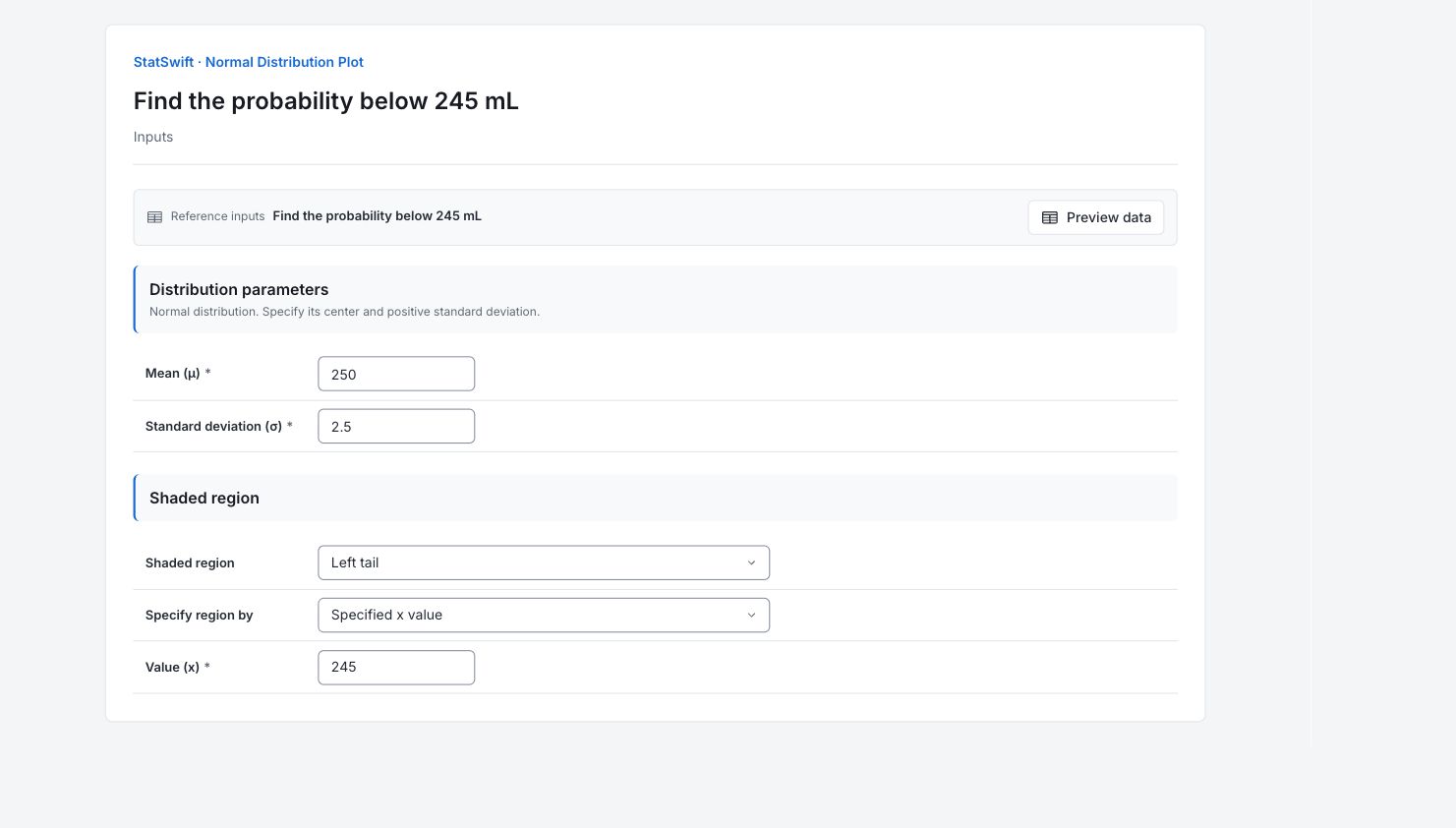
On Inputs, enter 250 in Mean (μ) and 2.5 in Standard deviation (σ), both in mL.
3. Choose the shaded region
Choose Left tail for Shaded region and Specified x value for Specify region by. Enter 245 in Value (x). No worksheet columns are assigned.
4. Run analysis
Choose Run analysis, then open Results.
5. Interpret results
Check the assumed model
Assume bottle fill is normally distributed with a mean of 250 mL and standard deviation of 2.5 mL. These are supplied model parameters, not estimates fitted by this calculator.
Read the shaded area
The shaded area to the left of 245 mL is 0.0227501, about 2.275%. That is the modeled probability of a bottle fill below 245 mL.

Modeled proportion below 245 mL under Normal mean 250 mL and SD 2.5 mL. View full-size chart (opens in a new tab) Keep the meaning clear
The curve height is density. Probability is the shaded area, not the height at 245 mL.
Apply it to the question
Compare the modeled tail with a defined fill requirement. Check representative fill measurements before treating this model probability as an operating underfill rate.
More details: read each result section
Complete result tables use six significant digits, as in Help.
Normal distribution summary
Mean μ is the center; Standard deviation σ is the spread in mL. Shaded region names the selected area. Region input records whether a value or probability was entered. Shaded probability is the area under the curve; Cut x1 and, where shown, Cut x2 are its boundaries in mL. The curve height is density. Probability is the shaded area, not the height at 245 mL.
| Statistic | Value |
|---|---|
| Mean μ | 250 |
| Standard deviation σ | 2.5 |
| Shaded region | left |
| Region input | x |
| Shaded probability | 0.0227501 |
| Cut x1 | 245 |
- Shading extends across ±4σ unless the requested region lies farther away.
6. Create a report
Keep the Normal distribution plot and Normal distribution summary together. Record the supplied mean and SD, selected region, input and resulting probability or cutoff. The curve height is density. Probability is the shaded area, not the height at 245 mL.
Choose Add to report from the completed run. Open Choose individual items and advanced options to select tables and charts, then choose Add to draft. Hidden items stay in the saved analysis.
Name the report and add the purpose of the study and your interpretation. Choose Save, review Preview, then use Export → Download HTML. The example below contains the full selected content, including results beyond one screen.