
Start with a small example so you can learn the workflow before importing your own measurements. This guide uses an X̄–R control chart, which summarizes measurements collected in subgroups.
Download the X̄–R sample data (TSV)
The file contains 125 synthetic shaft diameter measurements in millimetres: 25 subgroups of five. The last four subgroups include a deliberate shift. These are teaching examples, not customer production data.
1. Create an analysis
Open Process control in the sidebar and choose X̄–R Chart. Give the analysis a name, choose New blank worksheet, then select Create analysis.
The workspace has four tabs: Worksheet, Inputs, Results, and Help.
2. Import measurements
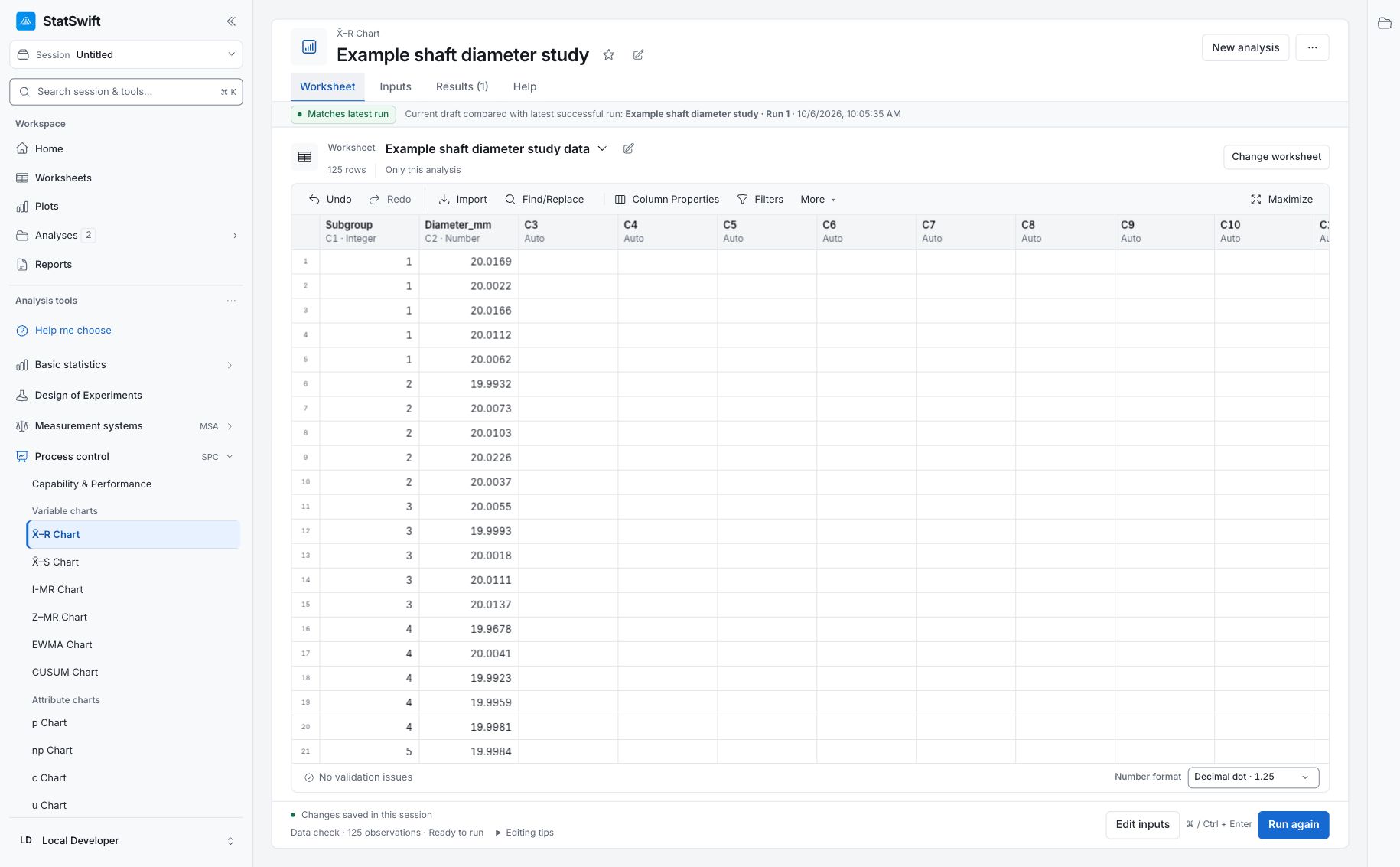
On Worksheet, choose Import and select the downloaded TSV file, or paste its contents into Paste tabular data. Use Tab (Excel) and Decimal dot, and check First row contains column names. Choose Preview import, review the rows, then Import into worksheet.
3. Assign columns and signal rules
Open Inputs and choose By subgroup ID. Select Subgroup for Subgroup ID and Diameter_mm for Measurements. Choose each column from the picker; typing its name alone does not assign it.
Open Western Electric / AIAG rules. Leave all five optional rules On to reproduce the attached shaft report: 7-point trend, 6 on one side, 14 alternating, 2 of 3 beyond 2σ and 4 of 5 beyond 1σ. Beyond-limit checks also apply.
4. Run analysis
Choose Run analysis, then open Results.
The X̄–R bottle-filling guide is a separate worked example using 35 subgroups in mL. Follow this quick start’s shaft data and settings when comparing with the report below.
5. Review a completed run
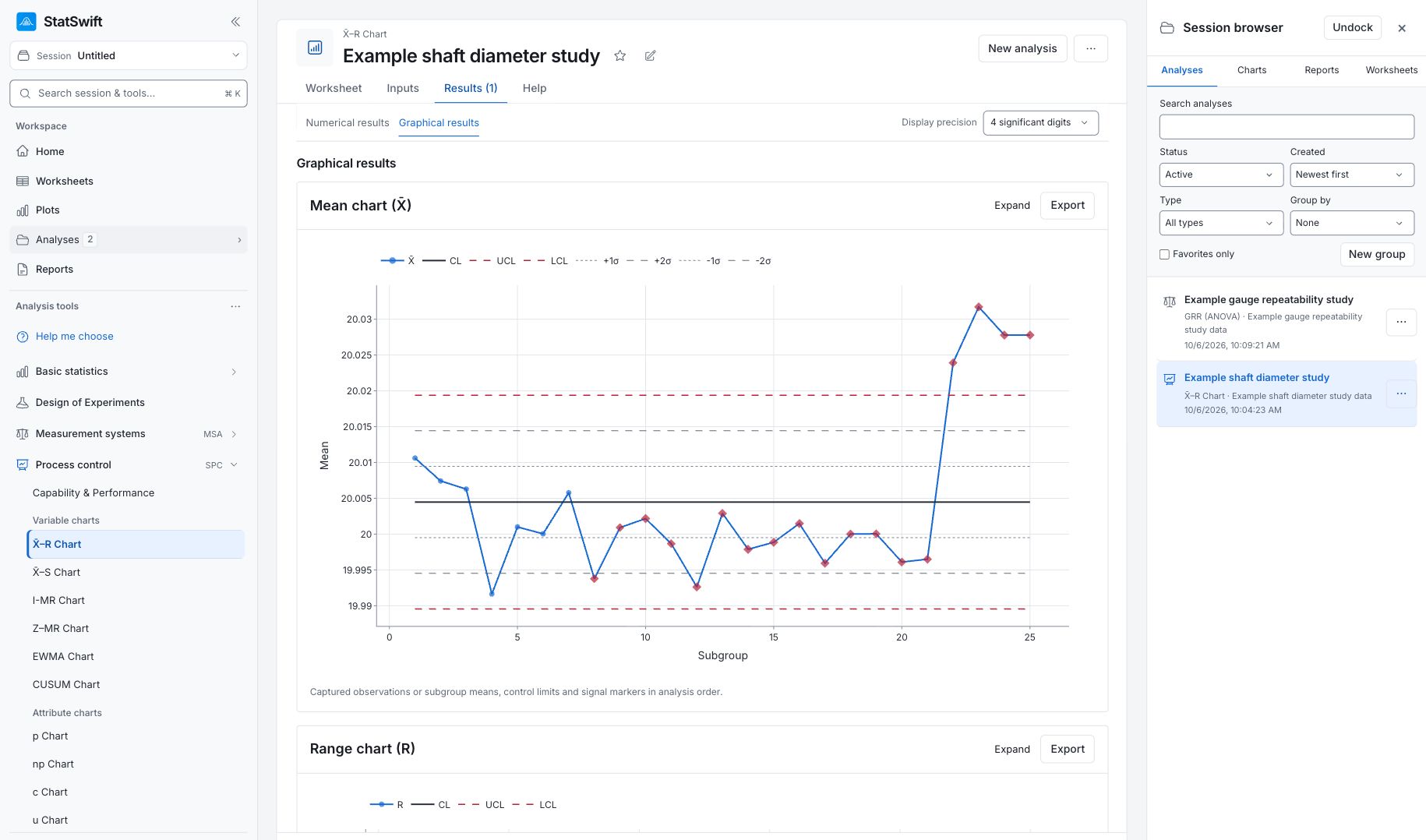
Read the Range chart (R) first: none of the 25 subgroup ranges is flagged in this example. Then read the Mean chart (X̄): the last four subgroup means, 22–25, exceed the upper limit. The deliberate shift changes the average diameter while the range chart detects no unusual within-subgroup spread.
The report lists 30 rule entries; several can refer to the same subgroup. These are signals to investigate, not 30 separate defective shafts. Control limits describe this sample’s behavior, not engineering acceptance limits. Inputs & data used lets you review the measurements and settings captured for the run.
To return later, open Analyses in the sidebar and choose the analysis in the session browser.
6. Create a report
Keep both X̄–R charts and the relevant tables. Add the sampling context and what you investigated.
Choose Add to report from the completed run. Open Choose individual items and advanced options to select tables and charts, then choose Add to draft. Hidden items stay in the saved analysis.
Name the report and add the purpose of the study and your interpretation. Choose Save, review Preview, then use Export → Download HTML. The example below contains the full selected content, including results beyond one screen.