

Example: first-scan label readability
Two independent samples: 300 and 310 labels, summarized as successes and trials.
Download the reference counts (CSV)This is the same example used in Help. The CSV records reference counts for manual entry on Inputs; importing it does not configure the calculator. Use Open example in a practice copy in Help to prefill the counts.
1. Create the workspace
In the sidebar, open Basic Statistics and choose Proportions. Create an analysis, name it, select New blank worksheet, then choose Create analysis.
2. Enter the counts
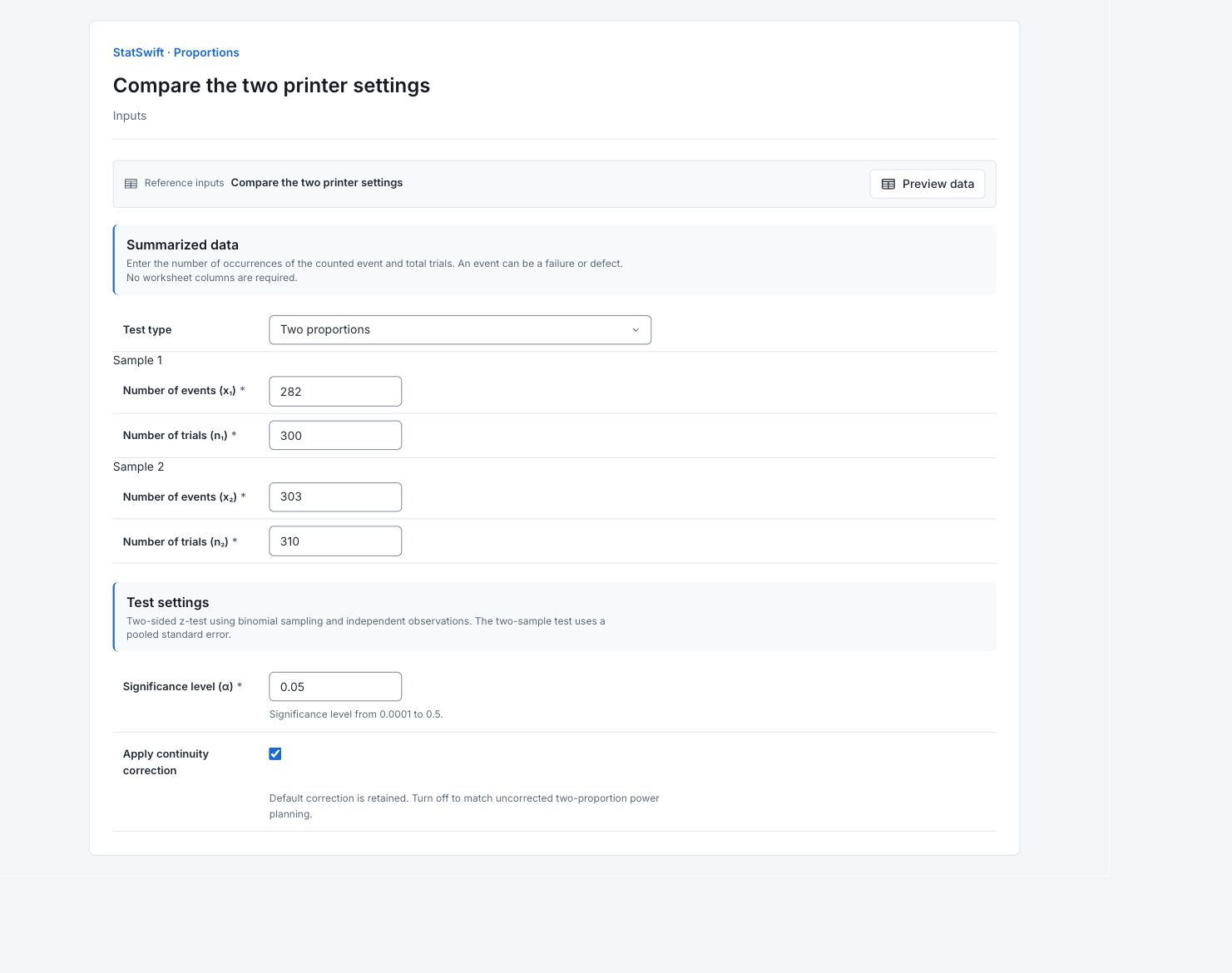
On Inputs, choose Two proportions for Test type. For Sample 1, enter 282 in Number of events (x₁) and 300 in Number of trials (n₁). For Sample 2, enter 303 in Number of events (x₂) and 310 in Number of trials (n₂). Here an event means readable on the first scan, not an unreadable label. Enter whole counts; no worksheet columns are assigned. Sample 1 is the standard process; Sample 2 is the revised process. Keep this order when interpreting the signed difference.
3. Set the test
Enter 0.05 in Significance level (α). The test is two-sided. Keep Apply continuity correction checked to reproduce this result.
4. Run analysis
Choose Run analysis, then open Results.
5. Interpret results
Define the counted event
An event is a label readable on the first scan. Trials count different inspected cartons. Sample 1 uses standard settings and Sample 2 revised settings, with independent samples.
Read the proportions
Standard settings give 282/300 = 94.00%; revised settings 303/310 = 97.742%. The revision is higher by 3.742 percentage points. Sample 1 minus Sample 2 is negative because the standard setting has lower readability.
Read the test
The continuity-corrected two-sided p-value is 0.03348. At the 5% level, there is evidence of different population readability rates under independent binomial sampling. Keep the correction setting with the result.
Decide how to use the result
Compare the estimated readability with the operational requirement and the cost of unreadable labels. Check sampling and scan conditions before attributing a change to printer settings.
Estimate the gain if it drives the decision
A p-value does not give an interval for the gain. Use Confidence Intervals, choose Difference between proportions, and enter these same independent sample counts. The supported Wald interval gives approximate uncertainty; reverse the sign if reporting revised minus standard. Follow the difference-between-proportions guide with this study’s counts, then compare the whole interval with a predefined useful gain.
More details: read each result section
Complete result tables use six significant digits, as in Help.
Two-proportions z-test
z statistic standardizes the proportion comparison; p-value tests the stated null using the normal approximation. Alpha is 0.05 and Alternative two-sided. Sample proportions are fractions from the entered counts. Method records pooled-normal-continuity-corrected; the test uses pooled uncertainty under equal population proportions. Continuity correction is true. Read Sample 1 minus Sample 2 in that order.
| Statistic | Value |
|---|---|
| z statistic | -2.12627 |
| p-value | 0.0334804 |
| Alpha | 0.05 |
| Alternative | Two-sided |
| Method | pooled-normal-continuity-corrected |
| Continuity correction | true |
| Sample 1 proportion | 0.94 |
| Sample 2 proportion | 0.977419 |
- Proportions differ (p=0.0335)
Summary counts
Successes count labels readable on the first scan; Trials count all inspected cartons in that sample. These are whole counts, not percentages. The samples use different cartons; no pairing or worksheet-column mapping is involved.
| Sample | Successes | Trials |
|---|---|---|
| Sample 1 | 282 | 300 |
| Sample 2 | 303 | 310 |
6. Create a report
Keep the complete Two-proportions z-test and Summary counts, event definition and sample identities. Retain the continuity correction and comparison direction.
Choose Add to report from the completed run. Open Choose individual items and advanced options to select tables and charts, then choose Add to draft. Hidden items stay in the saved analysis.
Name the report and add the purpose of the study and your interpretation. Choose Save, review Preview, then use Export → Download HTML. The example below contains the full selected content, including results beyond one screen.