

Example: connector insertion forces
80 different connectors; one positive insertion-force measurement each.
Download the example data (CSV)This is the same example used in Help. Import the CSV to follow the steps, or use Open example in a practice copy in Help to prefill the inputs.
1. Create the workspace
In the sidebar, open Basic Statistics and choose Normality. Create an analysis, name it, select New blank worksheet, then choose Create analysis.
2. Import the example data
Download the CSV above and import it into the worksheet. Choose Comma as the delimiter, Dot as the decimal separator and First row contains column names.
3. Assign the input column
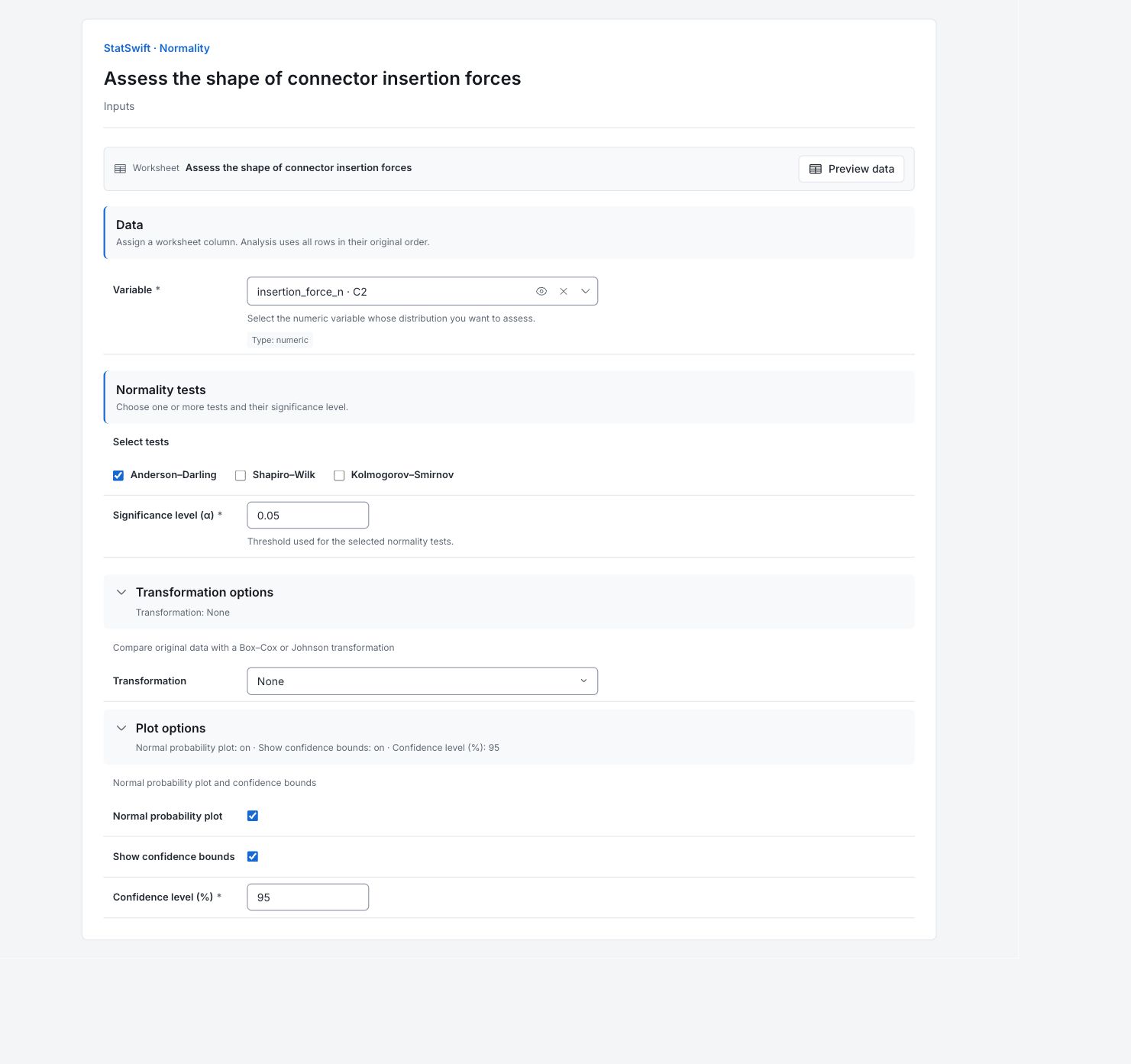
On Inputs, assign insertion_force_n to Variable.
4. Set the test and plot
Under Normality tests, check Anderson–Darling and leave Shapiro–Wilk and Kolmogorov–Smirnov unchecked. Enter 0.05 in Significance level (α).
Open Transformation options and choose None for Transformation. Open Plot options. Check Normal probability plot and Show confidence bounds, then enter 95 in Confidence level (%).
5. Run analysis
Choose Run analysis, then open Results.
6. Interpret results
Identify the model question
The sample contains 80 different connectors, with one force reading each and no missing values. The mean is about 37.11 N and SD 7.48 N. The question concerns the distribution of force, not whether the forces meet a requirement.
Read the probability plot
The middle of the plotted sample follows the fitted line fairly closely. The lower-force cluster around 26 N falls below it, so inspect that tail with the sampling records. Each point is an ordered force; the 95% bounds describe plot uncertainty, not acceptable force limits. Read this pattern alongside the test, which does not prove normality.

Insertion force in N against normal-model percent positions; inspect the lower-force tail as well as the center. View full-size chart (opens in a new tab) Read the test
Anderson–Darling is 0.4914 and p = 0.2132. At the 5% level, the sample does not reject a normal model. This is not proof of normality or a guarantee about rare forces in the tails.
Choose the next analysis
Read the plot, sampling method and process context together. A normal model may be useful for later inference if its assumptions fit that task; check tail behavior carefully when rare outcomes matter.
More details: read each result section
Complete result tables use six significant digits, as in Help.
Normality tests
Test identifies Anderson–Darling. Statistic measures departure from the fitted normal distribution; p-value assesses that departure under the test model. α is the 0.05 threshold. Decision is Do not reject; it does not mean the model has been proved.
| Test | Statistic | p-value | α | Decision |
|---|---|---|---|---|
| Anderson–Darling | 0.491438 | 0.213223 | 0.05 | Do not reject |
Sample statistics
Nonmissing and Missing observations document coverage. Mean, Median, Min and Max describe force in N; Standard deviation describes spread in N. These are sample statistics, not engineering tolerances.
| Statistic | Value |
|---|---|
| Nonmissing observations | 80 |
| Missing observations | 0 |
| Mean | 37.1137 |
| Standard deviation | 7.47904 |
| Minimum | 22.98 |
| Median | 36.24 |
| Maximum | 55.94 |
7. Create a report
Keep Normality tests, Sample statistics and the normal probability plot with its confidence bounds. Include the force unit, no-transformation setting and the distinction between not rejecting normality and proving it.
Choose Add to report from the completed run. Open Choose individual items and advanced options to select tables and charts, then choose Add to draft. Hidden items stay in the saved analysis.
Name the report and add the purpose of the study and your interpretation. Choose Save, review Preview, then use Export → Download HTML. The example below contains the full selected content, including results beyond one screen.