

Example: drying batches
The example records 72 drying batches with mass, inlet moisture, ambient temperature and electricity measurements. Mass is in kg, moisture is wet-basis percent, temperature is in °C and electricity is in kWh.
Download the example data (CSV)This is the same example used in Help. The CSV contains the observations to import.
1. Create the analysis
In the sidebar, open Plots and create an analysis. Name it, select New blank worksheet, then choose Create analysis.
2. Import the data
On Worksheet, choose Import. Select the downloaded CSV or paste its contents. Set the delimiter to Comma, use Decimal dot, and check First row contains column names. Preview the import, then choose Import into worksheet.
3. Assign the input columns
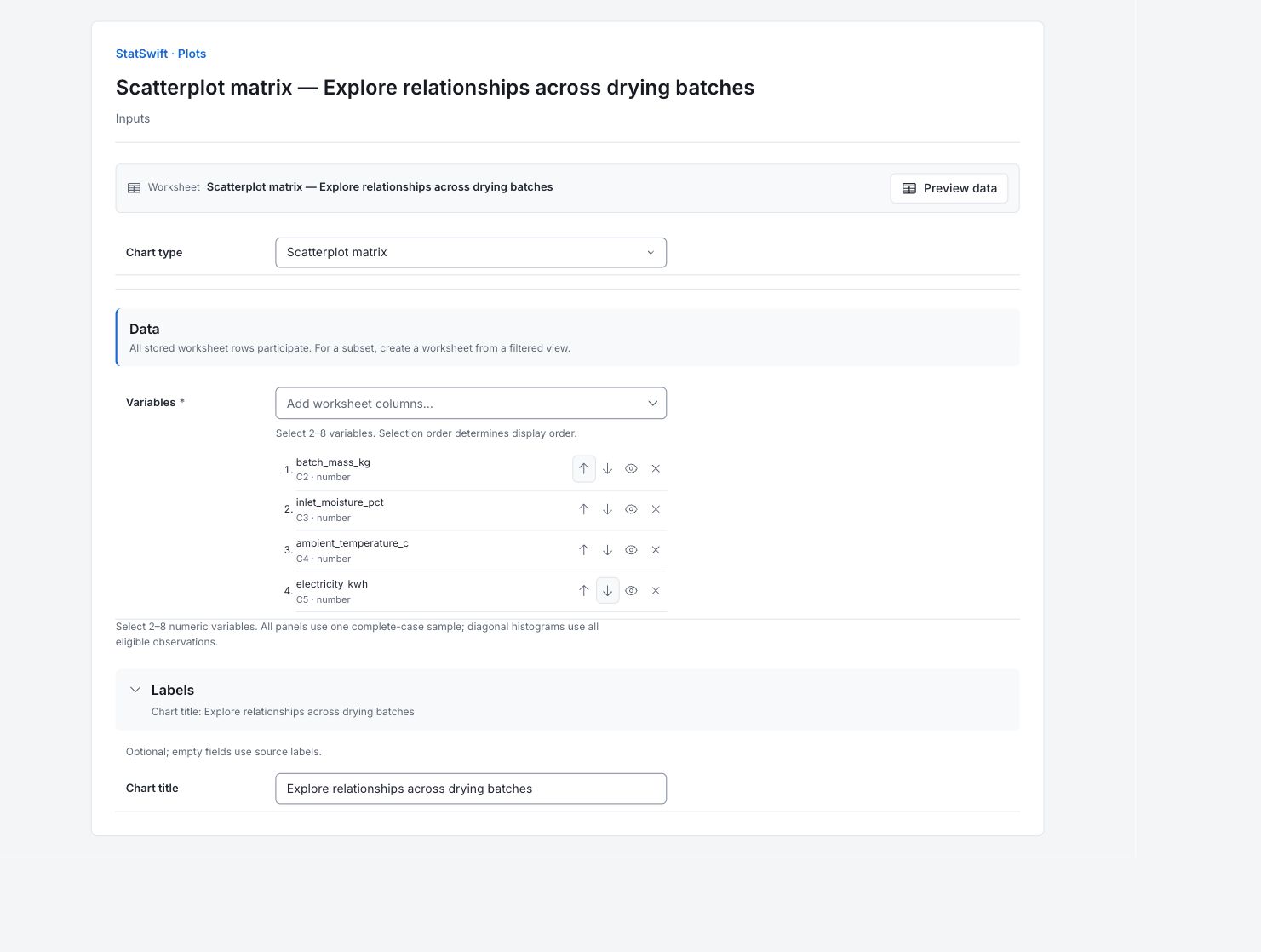
On Inputs, choose Scatterplot matrix in Chart type. Open the column picker for Variables.
Select batch_mass_kg, inlet_moisture_pct, ambient_temperature_c and electricity_kwh, in that order. Use the up and down arrows to correct the order if needed. Leave batch_id unselected; it identifies a batch.
4. Set the chart options
Keep all four variables selected. Every panel uses the same rows that are complete across all four columns. There are no additional statistical options for this example.
Open Labels and enter Explore relationships across drying batches in Chart title.
5. Create chart
Choose Create chart, then open Results. Check Data used before comparing the chart with this guide. All stored worksheet rows participate; sorting or filtering the worksheet does not change the analytical sample.
6. Interpret results
Read one panel
Use the column variable for the horizontal axis and the row variable for the vertical axis. Each off-diagonal point is one batch. Diagonal panels are histograms of individual variables.

Pairwise plots and diagonal histograms for the same 72 complete drying batches. View full-size chart (opens in a new tab) Check the shared sample
All panels use the same 72 complete-case batches: each batch has a value for all four selected measurements. A repeated pair in the opposite half shows the same relationship with its axes swapped.
Find the clearest relationship
Mass–electricity shows a clear positive pattern. Moisture–electricity is much less pronounced (the companion correlation is about +0.19, versus +0.85 for mass). Inspect both shapes; each panel compares two variables without adjusting for the others and cannot establish a cause.
Choose the next analysis
Use the correlation heatmap to summarize linear associations and Regression to consider the predictors together. Keep batch rows aligned when checking any unusual point.
More details: read each result section
Complete result tables use six significant digits, as in Help.
Data used
Worksheet rows is 72; Eligible observations across series is 72; Excluded observations is 0. All source rows are used. Check these counts and keep the example’s column assignments when comparing runs. Worksheet sorting and filters do not change the analytical sample.
All stored rows are considered in original order. Worksheet sorting and filters do not change the analytical sample.
| Worksheet rows | Eligible observations across series | Excluded observations |
|---|---|---|
| 72 | 72 | 0 |
Complete observations
Each row gives its original Worksheet row and all four aligned measurements. Units are kg, wet-basis percent, °C and kWh. These 72 complete rows form the shared sample. Keep all columns together when checking an unusual batch.
| Worksheet row | batch_mass_kg | inlet_moisture_pct | ambient_temperature_c | electricity_kwh |
|---|---|---|---|---|
| 1 | 99.8 | 9.6 | 15.4 | 73.02 |
| 2 | 188.3 | 11.45 | 16.2 | 109.31 |
| 3 | 97.4 | 12.19 | 24.9 | 76.87 |
| 4 | 111.3 | 8.46 | 21.1 | 77.35 |
| 5 | 217.1 | 6.35 | 26.1 | 98.12 |
| 6 | 132.1 | 13.29 | 18.5 | 87.75 |
| 7 | 84.1 | 7.84 | 22 | 70.39 |
| 8 | 187.9 | 9.98 | 17.2 | 113.74 |
| 9 | 98.9 | 10.49 | 21.4 | 75.35 |
| 10 | 187.3 | 7.79 | 18.3 | 106.9 |
| 11 | 185.4 | 8.02 | 21.3 | 99.69 |
| 12 | 208.5 | 9.37 | 27.7 | 104.56 |
| 13 | 157.9 | 10.88 | 22.6 | 95.97 |
| 14 | 109.4 | 12.37 | 18.4 | 78.58 |
| 15 | 141 | 8.96 | 27.9 | 70.91 |
| 16 | 92.1 | 11.93 | 15.2 | 83.65 |
| 17 | 135.5 | 11.12 | 26.2 | 78.93 |
| 18 | 136.1 | 13.47 | 23.1 | 95.62 |
| 19 | 165.8 | 8.89 | 25.4 | 86.15 |
| 20 | 147.3 | 13.34 | 27.3 | 92.84 |
| 21 | 203.4 | 10.5 | 15.2 | 108.69 |
| 22 | 174.1 | 6.33 | 17.2 | 88.03 |
| 23 | 134.9 | 12.78 | 16.2 | 103.2 |
| 24 | 97.5 | 8.48 | 24 | 64.03 |
| 25 | 108.4 | 11.21 | 24.8 | 73.39 |
| 26 | 131.8 | 10.79 | 16.6 | 91.5 |
| 27 | 150.5 | 11.83 | 21.9 | 97.24 |
| 28 | 177 | 13.57 | 22.4 | 116.1 |
| 29 | 123.6 | 13.35 | 24.2 | 98.15 |
| 30 | 93.3 | 13.19 | 23.6 | 79.33 |
| 31 | 193.5 | 12.51 | 21.4 | 111.51 |
| 32 | 116.2 | 9.92 | 18.5 | 80.12 |
| 33 | 162.2 | 11.23 | 27.3 | 95.18 |
| 34 | 131.9 | 6.96 | 21.9 | 82.87 |
| 35 | 109 | 12.14 | 22.7 | 84.86 |
| 36 | 80.4 | 11.91 | 26.6 | 61.39 |
| 37 | 123.8 | 9.12 | 16.2 | 84.37 |
| 38 | 165.3 | 7.06 | 27.7 | 79.15 |
| 39 | 80.1 | 6.99 | 16.2 | 64.21 |
| 40 | 104.5 | 11.42 | 23.7 | 75.82 |
| 41 | 94.4 | 12.75 | 26.8 | 84.76 |
| 42 | 88.6 | 7.54 | 22.3 | 55.44 |
| 43 | 123.1 | 7.59 | 25.1 | 65.89 |
| 44 | 206.1 | 8.75 | 25.9 | 107.41 |
| 45 | 135 | 6.85 | 21.5 | 79.37 |
| 46 | 193.5 | 10.55 | 22.6 | 100.21 |
| 47 | 184.6 | 9.9 | 22.3 | 104.05 |
| 48 | 107.9 | 12.45 | 26.9 | 80.17 |
| 49 | 186.8 | 8.23 | 22.9 | 86.27 |
| 50 | 131.5 | 13.39 | 25.6 | 89.52 |
| 51 | 209.5 | 9.41 | 27.3 | 103.99 |
| 52 | 179.8 | 6.64 | 21.8 | 97.26 |
| 53 | 104.7 | 8.48 | 21.1 | 72.93 |
| 54 | 168.1 | 6.05 | 23.5 | 85.16 |
| 55 | 193.4 | 8.19 | 17.8 | 99.42 |
| 56 | 122 | 7.3 | 26.4 | 73.27 |
| 57 | 171.6 | 10.7 | 21.4 | 103.89 |
| 58 | 110.5 | 10.63 | 21.3 | 83.06 |
| 59 | 200.1 | 9.12 | 25 | 109.7 |
| 60 | 147.4 | 11.72 | 18.7 | 89.14 |
| 61 | 148.3 | 10.9 | 25.5 | 93.93 |
| 62 | 118.7 | 7.83 | 24.5 | 70.1 |
| 63 | 107.8 | 12.35 | 27.2 | 80.28 |
| 64 | 107.1 | 13.39 | 20.5 | 79.01 |
| 65 | 103.4 | 9.07 | 20.3 | 72.92 |
| 66 | 175.1 | 10.71 | 19.2 | 98.54 |
| 67 | 83.4 | 12.27 | 20.3 | 67.83 |
| 68 | 192.6 | 11.74 | 25.9 | 102.09 |
| 69 | 207.9 | 8.36 | 25.2 | 106.33 |
| 70 | 208.4 | 12.52 | 21.8 | 112.93 |
| 71 | 91.8 | 10.57 | 26.8 | 66.22 |
| 72 | 176.1 | 10.55 | 19.6 | 107.84 |
7. Create a report
Keep the native chart and Data used, together with Complete observations. Record the column assignments and chart options. Include the study context and any checks of unusual observations. Keep the chart’s units and the limitations described in the walkthrough.
Choose Add to report from the completed run. Open Choose individual items and advanced options to select tables and charts, then choose Add to draft. Hidden items stay in the saved analysis.
Name the report and add the purpose of the study and your interpretation. Choose Save, review Preview, then use Export → Download HTML. The example below contains the full selected content, including results beyond one screen.