

Example: solids-content aliquots
15 independently prepared aliquot measurements, including the questioned reading.
Download the example data (CSV)This is the same example used in Help. Import the CSV to follow the steps, or use Open example in a practice copy in Help to prefill the inputs.
1. Create the workspace
In the sidebar, open Basic Statistics and choose Outlier Test. Create an analysis, name it, select New blank worksheet, then choose Create analysis.
2. Import the example data
Download the CSV above and import it into the worksheet. Choose Comma as the delimiter, Dot as the decimal separator and First row contains column names.
3. Assign the input column
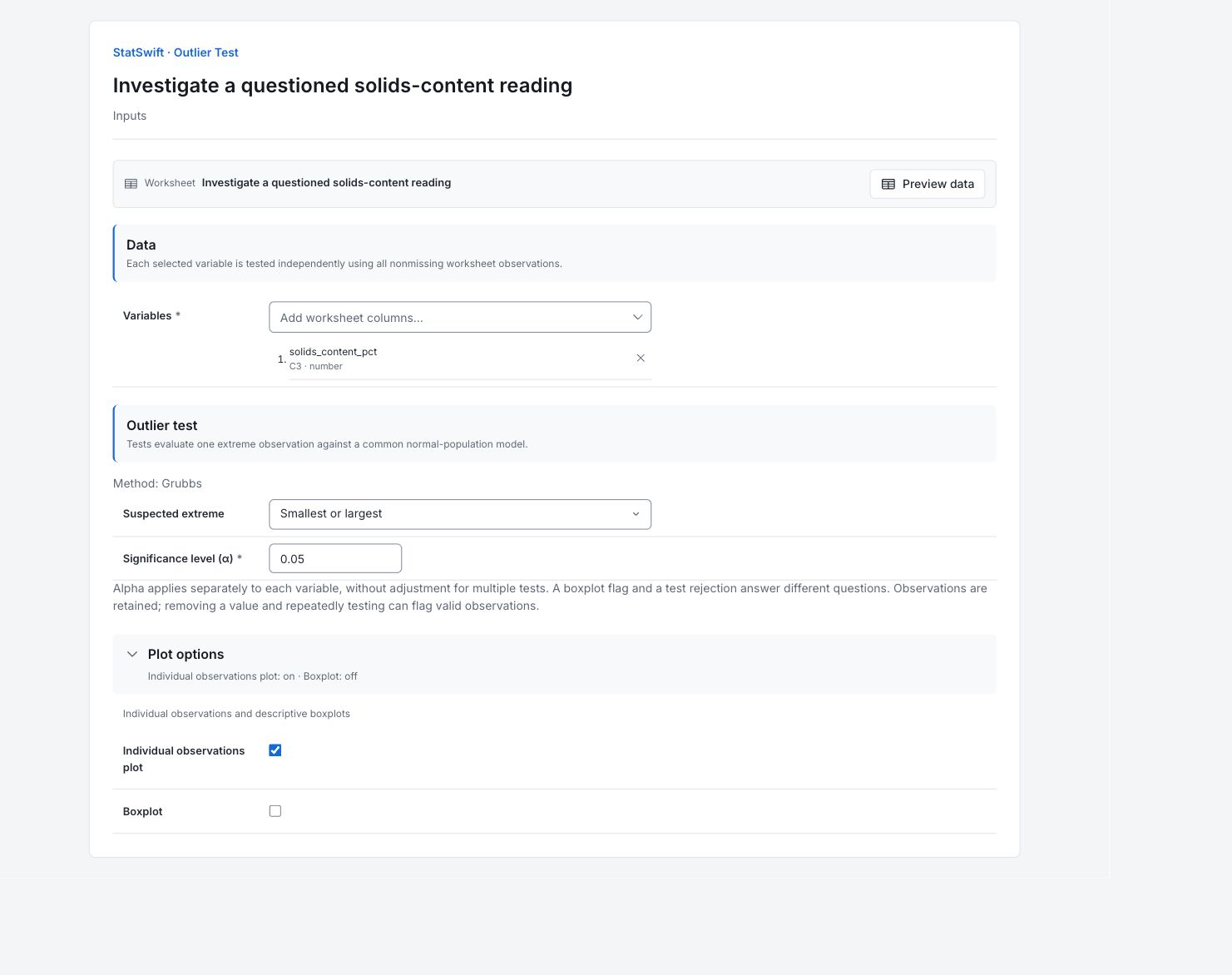
On Inputs, open Variables and select solids_content_pct.
4. Set the test and plot
The method is Grubbs. Choose Smallest or largest for Suspected extreme and enter 0.05 in Significance level (α). Open Plot options, check Individual observations plot and leave Boxplot unchecked.
5. Run analysis
Choose Run analysis, then open Results.
6. Interpret results
Keep the questioned reading
All 15 independently prepared aliquot readings remain included. Grubbs tests one extreme against an approximately normal common population. It cannot establish that a measurement is an error.
Locate the point
Worksheet row 11 is aliquot A07, with 40.67% solids, above the other readings. The row number excludes the CSV header. Use the aliquot ID to check preparation and original records before deciding whether any correction is justified.

Solids content (%) in worksheet order; row 11 is aliquot A07. View full-size chart (opens in a new tab) Read the test result
Grubbs statistic is 3.2829 and p = 0.00004277. The test flags row 11 at the 5% level. The mean of 40.0947% and SD of 0.1752 percentage points still include that reading.
Investigate before changing data
Check the preparation, instrument and recording evidence for row 11. Retain it unless that evidence justifies a correction or exclusion. Removing extremes and repeatedly rerunning the test can flag valid observations.
More details: read each result section
Complete result tables use six significant digits, as in Help.
Outlier test
Method, Alternative and Alpha document the two-sided Grubbs test. Statistic and p-value describe how extreme the candidate is under its normal-population model. Probability interpretation states how the probability was reported. Decision is statistical evidence, not a confirmed error.
| Statistic | Value |
|---|---|
| Method | Grubbs |
| Alternative | Smallest or largest |
| Alpha | 0.05 |
| Statistic | 3.28294 |
| p-value | 0.0000427725 |
| Probability interpretation | Numerical p-value |
| Decision | Evidence of an outlier |
Test candidates
Worksheet row identifies the data row without the CSV header; Value is its solids percentage; Test conclusion states whether it was flagged. Only row 11 is listed. Keep the aliquot ID when investigating the source record.
Extreme observations evaluated by the selected test. Candidate status alone does not imply rejection.
| Worksheet row | Value | Test conclusion |
|---|---|---|
| 11 | 40.67 | Flagged by test |
Sample statistics
N is 15 and Missing is 0. Mean, Minimum and Maximum are solids percentages; Sample SD is in percentage points. All readings, including the flagged value, remain in these summaries.
| Statistic | Value |
|---|---|
| N | 15 |
| Missing | 0 |
| Mean | 40.0947 |
| Sample SD | 0.175249 |
| Minimum | 39.94 |
| Maximum | 40.67 |
7. Create a report
Keep Outlier test, Test candidates, Sample statistics, the individual-observations plot and the warning about unadjusted tests. Record the aliquot ID and investigation evidence; a statistical flag alone does not justify deletion.
Choose Add to report from the completed run. Open Choose individual items and advanced options to select tables and charts, then choose Add to draft. Hidden items stay in the saved analysis.
Name the report and add the purpose of the study and your interpretation. Choose Save, review Preview, then use Export → Download HTML. The example below contains the full selected content, including results beyond one screen.