
Example: pass rates of 98% versus 94%
Plan two independent, equally sized pass/fail groups with assumed pass rates of 98% and 94%. The difference of interest is four percentage points.
Download the planning reference (CSV)This is the same example used in Help. The CSV lists reference scenarios. Enter the selected planning values manually on Inputs; importing it does not configure this calculator. Use Open example in a practice copy in Help to prefill the inputs.
1. Create the workspace
In the sidebar, open Basic Statistics and choose Power & Sample Size. Create an analysis, name it, select New blank worksheet, then choose Create analysis.
2. Choose the study
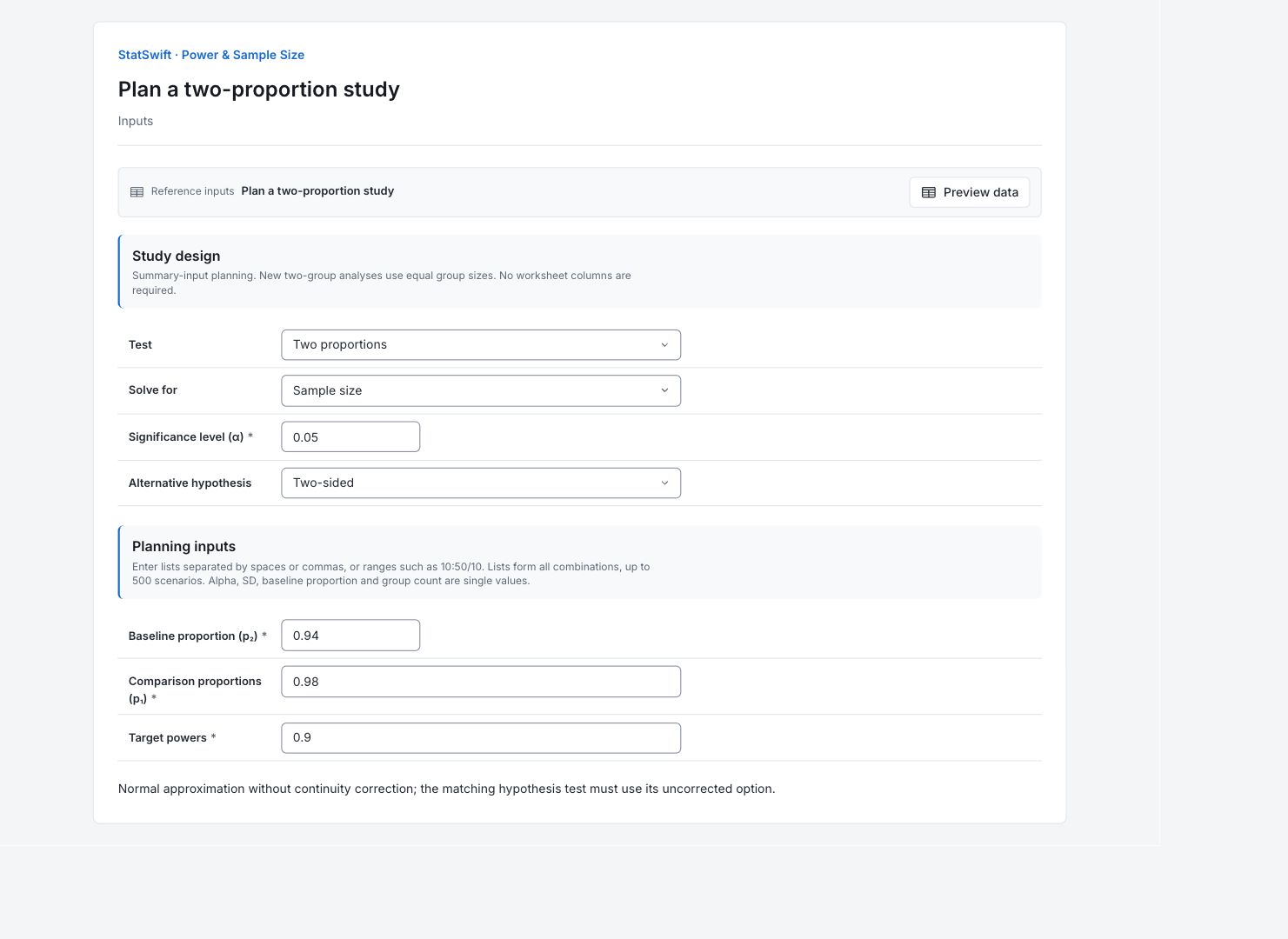
On Inputs, choose Two proportions for Test and Sample size for Solve for. Enter 0.05 in Significance level (α) and choose Two-sided for Alternative hypothesis. This planning method does not apply a continuity correction; retain that distinction when comparing it with the proportions-test example.
3. Enter the planning values
Enter one value in each field for this scenario. No worksheet columns are assigned.
Enter 0.94 in Baseline proportion (p₂).
Enter 0.98 in Comparison proportions (p₁).
Enter 0.9 in Target powers.
4. Run analysis
Choose Run analysis, then open Results.
5. Interpret results
Check the planned study
Plan two independent, equally sized pass/fail groups with assumed pass rates of 98% and 94%. The difference of interest is four percentage points.
Read the calculated plan
The plan requires 503 observations per group: 1,006 total. Achieved power is 0.900411; at 502 per group it is 0.899843, below 90%.
Follow the power curve
The curve holds sample size at 503 per group and the baseline at 0.94. At a comparison proportion of 0.98, power is about 90%; nearer the baseline it is lower.

Power versus effect View full-size chart (opens in a new tab) Understand the assumptions
Power is the chance that the planned test detects the specified difference when that difference is real, under the entered assumptions. It is not the chance that a hypothesis is true and does not guarantee a significant result. This is a pooled-normal approximation with equal group sizes and no continuity correction. The matching Proportions analysis must leave Apply continuity correction unchecked; its corrected default uses a different convention.
Decide how to collect the sample
Confirm the four-percentage-point difference, pass/fail definition and equal allocation before sampling. Recalculate for changed proportions or choose a method that supports the required allocation.
More details: read each result section
Complete result tables use six significant digits, as in Help.
Power and sample size scenarios
Scenario links this row to its input values. Branch records a solved effect direction; a dash means it is not applicable. Sample size is per group for two-group plans; Total observations counts both groups. Mean difference or Comparison proportion is the effect being planned. Target power is the request; Achieved power is the calculated result. Power at preceding size checks one fewer observation per group. DF is the t-test degrees of freedom, where applicable. Status and Details record whether the scenario was calculated. The plan requires 503 observations per group: 1,006 total. Achieved power is 0.900411; at 502 per group it is 0.899843, below 90%.
| Scenario | Branch | Sample size per group | Total observations | Comparison proportion | Target power | Achieved power | Power at preceding size | DF | Status | Details |
|---|---|---|---|---|---|---|---|---|---|---|
| 1 | — | 503 | 1006 | 0.98 | 0.9 | 0.900411 | 0.899843 | — | ok | — |
- Unavailable branches retain their status and input values. Pairs count two observations each. A preceding-size power is reported only when that size is valid.
Planning method
Method and Calibration identify the calculation used. Alpha 0.05 is the test significance level; Alternative two-sided includes both directions. Solve for names the quantity being calculated. Assumptions and Planning SD or Baseline proportion record what the result depends on. This is a pooled-normal approximation with equal group sizes and no continuity correction. The matching Proportions analysis must leave Apply continuity correction unchecked; its corrected default uses a different convention.
| Setting | Value |
|---|---|
| Method | Two proportions |
| Calibration | statswift-normal-two-proportions-v1 |
| Alpha | 0.05 |
| Alternative | two-sided |
| Solve for | Sample size per group |
| Assumptions | Independent equal-sized groups; pooled null threshold; no continuity correction. |
| Baseline proportion | 0.94 |
- Results and curve points are captured with this run. Sample sizes are whole numbers; target power and achieved power are distinct.
Scenario input values
Scenario matches the numbered result row. Inputs records the active scenario values; these are planning assumptions, not observed measurements. Single-value inputs produce one scenario here.
| Scenario | Inputs |
|---|---|
| 1 | {"p1":0.98,"power":0.9} |
Captured power curve values
Each row gives a sample size, a mean difference or comparison proportion, and its calculated Power. These are all captured values behind the native chart. For two-group plans the size is per group. Read power between zero and one; 0.9 means 90%. The curve holds sample size at 503 per group and the baseline at 0.94. At a comparison proportion of 0.98, power is about 90%; nearer the baseline it is lower.
| Sample size per group | Comparison proportion | Power |
|---|---|---|
| 503 | 0.84 | 0.999181 |
| 503 | 0.842667 | 0.998806 |
| 503 | 0.845333 | 0.998275 |
| 503 | 0.848 | 0.997532 |
| 503 | 0.850667 | 0.9965 |
| 503 | 0.853333 | 0.995083 |
| 503 | 0.856 | 0.993159 |
| 503 | 0.858667 | 0.990573 |
| 503 | 0.861333 | 0.987137 |
| 503 | 0.864 | 0.982622 |
| 503 | 0.866667 | 0.97676 |
| 503 | 0.869333 | 0.969237 |
| 503 | 0.872 | 0.959703 |
| 503 | 0.874666 | 0.947769 |
| 503 | 0.877333 | 0.933024 |
| 503 | 0.88 | 0.915047 |
| 503 | 0.882666 | 0.89343 |
| 503 | 0.885333 | 0.8678 |
| 503 | 0.888 | 0.837853 |
| 503 | 0.890666 | 0.803388 |
| 503 | 0.893333 | 0.764337 |
| 503 | 0.896 | 0.720801 |
| 503 | 0.898666 | 0.673074 |
| 503 | 0.901333 | 0.621658 |
| 503 | 0.904 | 0.567263 |
| 503 | 0.906666 | 0.510793 |
| 503 | 0.909333 | 0.453317 |
| 503 | 0.912 | 0.396013 |
| 503 | 0.914666 | 0.340111 |
| 503 | 0.917333 | 0.286816 |
| 503 | 0.919999 | 0.237244 |
| 503 | 0.922666 | 0.192356 |
| 503 | 0.925333 | 0.152916 |
| 503 | 0.927999 | 0.119473 |
| 503 | 0.930666 | 0.0923783 |
| 503 | 0.933333 | 0.0718321 |
| 503 | 0.935999 | 0.0579579 |
| 503 | 0.938666 | 0.0508992 |
| 503 | 0.94 | 0.05 |
| 503 | 0.941333 | 0.0509164 |
| 503 | 0.943999 | 0.0584678 |
| 503 | 0.946666 | 0.0742489 |
| 503 | 0.949333 | 0.0991662 |
| 503 | 0.951999 | 0.134227 |
| 503 | 0.954666 | 0.180333 |
| 503 | 0.957333 | 0.237995 |
| 503 | 0.959999 | 0.307004 |
| 503 | 0.962666 | 0.386115 |
| 503 | 0.965333 | 0.472866 |
| 503 | 0.967999 | 0.56359 |
| 503 | 0.970666 | 0.653726 |
| 503 | 0.973332 | 0.738399 |
| 503 | 0.975999 | 0.813197 |
| 503 | 0.978666 | 0.874937 |
| 503 | 0.98 | 0.900411 |
| 503 | 0.981332 | 0.922212 |
| 503 | 0.983999 | 0.955511 |
| 503 | 0.986666 | 0.976877 |
| 503 | 0.989332 | 0.989225 |
| 503 | 0.991999 | 0.995569 |
| 503 | 0.994666 | 0.998421 |
| 503 | 0.997332 | 0.999523 |
| 503 | 0.999999 | 0.999881 |
- All captured curves are included in this table and its CSV export; the plot shows at most 12 selected sample sizes.
6. Create a report
Keep Power and sample size scenarios, Planning method, Scenario input values, the native Power versus effect chart and its complete captured-values table. Record the difference worth detecting, planning spread or proportions, sample allocation and method. This is a pooled-normal approximation with equal group sizes and no continuity correction. The matching Proportions analysis must leave Apply continuity correction unchecked; its corrected default uses a different convention.
Choose Add to report from the completed run. Open Choose individual items and advanced options to select tables and charts, then choose Add to draft. Hidden items stay in the saved analysis.
Name the report and add the purpose of the study and your interpretation. Choose Save, review Preview, then use Export → Download HTML. The example below contains the full selected content, including results beyond one screen.