

Example: shipping damage
The example records six rows summarizing 125 damaged shipments across three services and two damage types. Intact shipments are excluded, and service sample sizes differ.
Download the example data (CSV)This is the same example used in Help. The CSV contains the observations or supplied counts to import.
1. Create the analysis
In the sidebar, open Plots and create an analysis. Name it, select New blank worksheet, then choose Create analysis.
2. Import the data
On Worksheet, choose Import. Select the downloaded CSV or paste its contents. Set the delimiter to Comma, use Decimal dot, and check First row contains column names. Preview the import, then choose Import into worksheet.
3. Assign the input columns
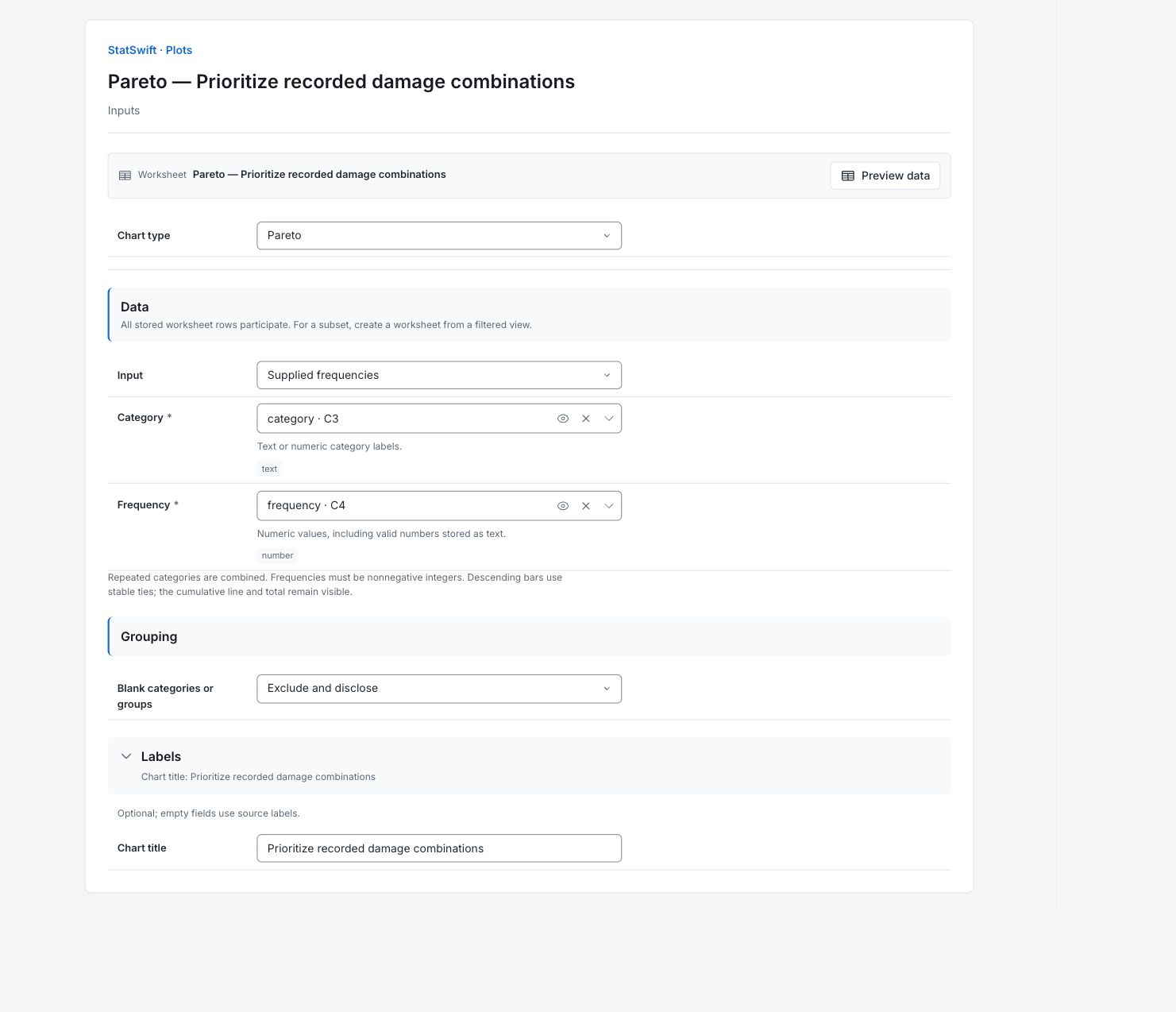
On Inputs, choose Pareto in Chart type. Set Input to Supplied frequencies.
Open the column picker for Category and select category. For Frequency, select frequency. Each category combines a shipping service and damage type; the values are shipment counts, rather than one shipment per row.
4. Set the chart options
Keep Blank categories or groups at Exclude and disclose. The chart combines repeated category labels and orders bars by descending frequency.
Open Labels and enter Prioritize recorded damage combinations in Chart title.
5. Create chart
Choose Create chart, then open Results. Check Data used before comparing the chart with this guide. All stored worksheet rows participate; sorting or filtering the worksheet does not change the analytical sample.
6. Interpret results
Read the ranked bars
Bars rank the service–damage combinations by their supplied counts, from largest to smallest. The line uses the right axis to show their cumulative percentage of the 125 damaged shipments.

Six service–damage counts ranked by frequency, with cumulative share of the 125 damaged cases. View full-size chart (opens in a new tab) Read the cumulative share
The leading combinations are Consolidated cosmetic-only (38 cases), Standard cosmetic-only (24) and Consolidated functional damage (22). Together they account for 67.2% of the 125 damaged cases. Adding the fourth reaches 80.0%; this concentration describes this sample.
Keep the denominator in view
Intact shipments are excluded. These percentages are shares of damaged cases, not damage rates among all shipments. The 80% total describes this sample; it does not establish a universal 80/20 rule.
Choose an investigation priority
Use counts together with severity and shipment volumes. A smaller functional-damage category may deserve attention first. For service risk comparisons, the full shipment table in the Chi-square guide includes intact cases and service denominators; this damaged-case Pareto alone cannot rank service quality.
More details: read each result section
Complete result tables use six significant digits, as in Help.
Data used
Worksheet rows is 6; Eligible observations across series is 6; Excluded observations is 0. The six eligible rows contain supplied counts totaling 125 damaged shipments. Intact shipments were intentionally omitted from the source file; they were not excluded by the calculation. Worksheet sorting and filters do not change the analytical sample.
All stored rows are considered in original order. Worksheet sorting and filters do not change the analytical sample.
| Worksheet rows | Eligible observations across series | Excluded observations |
|---|---|---|
| 6 | 6 | 0 |
Pareto values
Category gives the service–damage combination and Frequency gives its count. Cumulative % adds the counts down the sorted table and divides by Total frequency, 125. All six rows refer to damaged shipments. The total is not the full shipment denominator.
| Category | Frequency | Cumulative % | Total frequency |
|---|---|---|---|
| Consolidated · Cosmetic damage only | 38 | 30.4 | 125 |
| Standard · Cosmetic damage only | 24 | 49.6 | 125 |
| Consolidated · Functional damage | 22 | 67.2 | 125 |
| Standard · Functional damage | 16 | 80 | 125 |
| Express · Cosmetic damage only | 14 | 91.2 | 125 |
| Express · Functional damage | 11 | 100 | 125 |
7. Create a report
Keep the native chart and Data used, together with Pareto values. Record the column assignments and chart options. State that the 125 cases are damaged shipments and that intact shipments are excluded. Include full shipment denominators separately if comparing risk.
Choose Add to report from the completed run. Open Choose individual items and advanced options to select tables and charts, then choose Add to draft. Hidden items stay in the saved analysis.
Name the report and add the purpose of the study and your interpretation. Choose Save, review Preview, then use Export → Download HTML. The example below contains the full selected content, including results beyond one screen.