

Example: adhesive strength
The example records 80 bonded joints, with 20 for each of four adhesive formulations. Strength is measured in MPa.
Download the example data (CSV)This is the same example used in Help. The CSV contains the observations to import.
1. Create the analysis
In the sidebar, open Plots and create an analysis. Name it, select New blank worksheet, then choose Create analysis.
2. Import the data
On Worksheet, choose Import. Select the downloaded CSV or paste its contents. Set the delimiter to Comma, use Decimal dot, and check First row contains column names. Preview the import, then choose Import into worksheet.
3. Assign the input columns
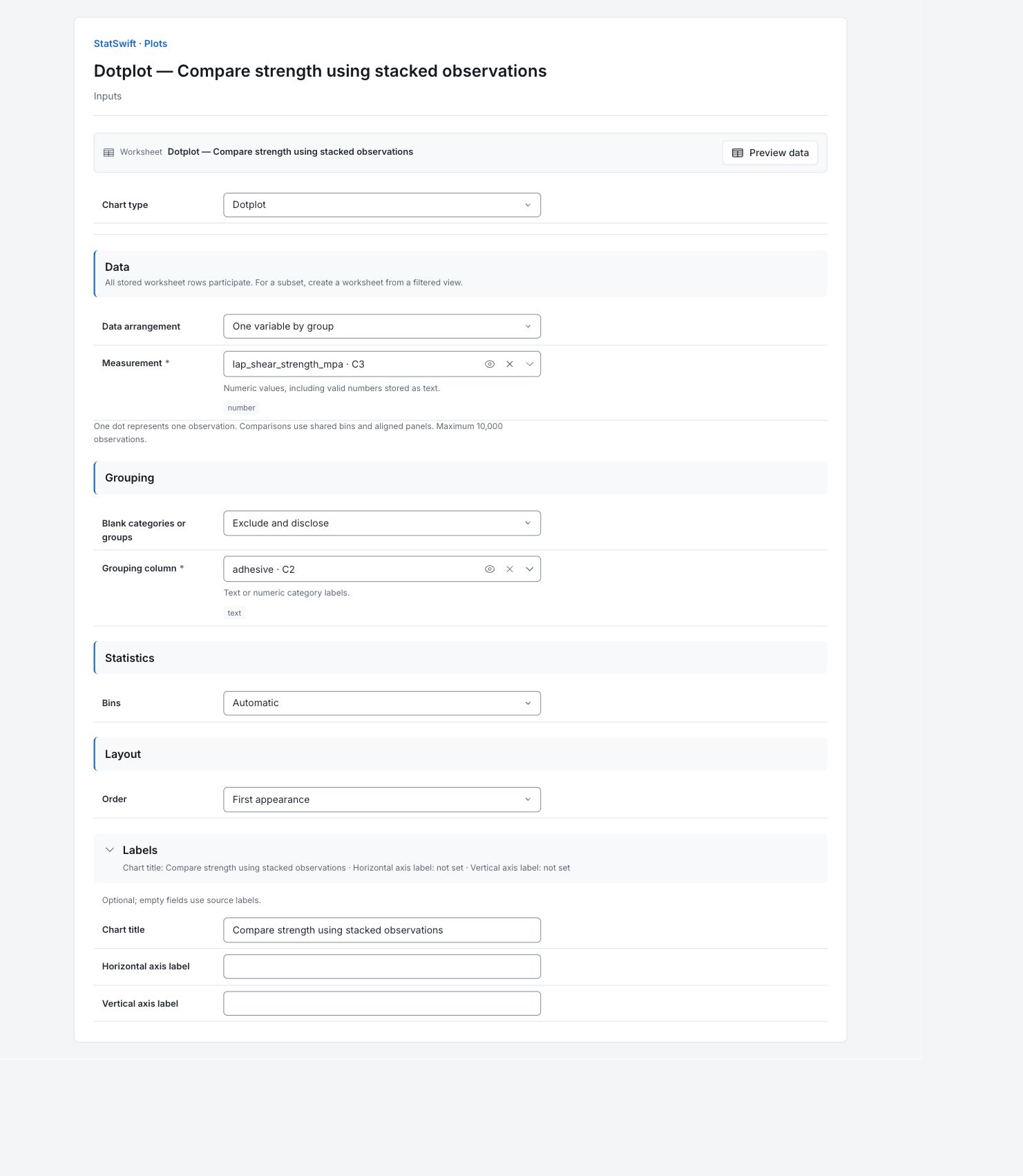
On Inputs, choose Dotplot in Chart type. In Data arrangement, choose One variable by group.
Open the column picker for Measurement and select lap_shear_strength_mpa. For Grouping column, select adhesive. Each dot will represent one bonded joint.
4. Set the chart options
In Statistics, choose Automatic for Bins. In Layout, choose First appearance for Order. Keep Blank categories or groups at Exclude and disclose. The groups use shared bins and aligned panels.
Open Labels and enter Compare strength using stacked observations in Chart title. Leave Horizontal axis label and Vertical axis label blank so the source labels are used.
5. Create chart
Choose Create chart, then open Results. Check Data used before comparing the chart with this guide. All stored worksheet rows participate; sorting or filtering the worksheet does not change the analytical sample.
6. Interpret results
Read the dots
Each dot represents one joint. Values in the same bin stack vertically, with horizontal positions at bin centers. All four panels share the same bins and strength scale in MPa.
Read Adhesive_B
The 20 B joints span 10.66–15.34 MPa, with a median of 13.255 MPa. Use the dot stacks to see which strength intervals occur most often.

Twenty Adhesive_B joint strengths, stacked in bins shared by all four formulations. View full-size chart (opens in a new tab) Compare Adhesive_C
Compare C with A: C’s median is 15.215 MPa and A’s is 12.99 MPa. Their observed ranges overlap. Use the common horizontal scale to compare centers without assuming that every C joint is stronger than every A joint.

Twenty Adhesive_C joint strengths, stacked in bins shared by all four formulations. View full-size chart (opens in a new tab) Compare Adhesive_D
The D panel overlaps the other formulations. Read its exact range and median in Data summary rather than estimating them from the bin centers.

Twenty Adhesive_D joint strengths, stacked in bins shared by all four formulations. View full-size chart (opens in a new tab) Compare Adhesive_A
Use the A panel to check the C-versus-A contrast on the same scale. Data summary contains the exact medians and ranges for all four formulations.

Twenty Adhesive_A joint strengths, stacked in bins shared by all four formulations. View full-size chart (opens in a new tab) Choose the next comparison
Read exact measurements in Dot placement: bin centers are display positions, not altered source values. Use the interval chart or an appropriate ANOVA to compare means; the dotplot alone does not establish a formulation effect.
More details: read each result section
Complete result tables use six significant digits, as in Help.
Data used
Worksheet rows is 80; Eligible observations across series is 80; Excluded observations is 0. All source rows are used. Check these counts and keep the example’s column assignments when comparing runs. Worksheet sorting and filters do not change the analytical sample.
All stored rows are considered in original order. Worksheet sorting and filters do not change the analytical sample.
| Worksheet rows | Eligible observations across series | Excluded observations |
|---|---|---|
| 80 | 80 | 0 |
Data summary
Series names the measurement or group. Valid and Missing give counts; Mean and Median describe the center. Sample SD describes spread. Minimum and Maximum are the observed ends; Q1 and Q3 enclose the middle half. These summaries describe the captured observations, not acceptance limits.
| Series | Valid | Missing | Mean | Sample SD | Minimum | Q1 | Median | Q3 | Maximum |
|---|---|---|---|---|---|---|---|---|---|
| Adhesive_B | 20 | 0 | 13.2955 | 1.2016 | 10.66 | 12.6975 | 13.255 | 14.2325 | 15.34 |
| Adhesive_C | 20 | 0 | 15.178 | 1.12076 | 12.88 | 14.5675 | 15.215 | 15.745 | 17.07 |
| Adhesive_D | 20 | 0 | 14.2415 | 1.07341 | 11.5 | 13.875 | 14.47 | 15.085 | 15.79 |
| Adhesive_A | 20 | 0 | 12.9655 | 1.08188 | 10.27 | 12.4825 | 12.99 | 13.6925 | 15 |
Dot placement
Series identifies the formulation and Worksheet row locates the joint. Value is its original strength in MPa. Bin lower edge and Bin upper edge locate the shared display interval; Stack position separates dots in that interval. Binning does not replace the source strength.
| Series | Worksheet row | Value | Bin lower edge | Bin upper edge | Stack position |
|---|---|---|---|---|---|
| Adhesive_B | 1 | 12.56 | 12.5367 | 13.2922 | 1 |
| Adhesive_B | 5 | 12.74 | 12.5367 | 13.2922 | 2 |
| Adhesive_B | 10 | 10.66 | 10.27 | 11.0256 | 1 |
| Adhesive_B | 14 | 11.83 | 11.7811 | 12.5367 | 1 |
| Adhesive_B | 16 | 13.16 | 12.5367 | 13.2922 | 3 |
| Adhesive_B | 19 | 14.01 | 13.2922 | 14.0478 | 1 |
| Adhesive_B | 20 | 14.3 | 14.0478 | 14.8033 | 1 |
| Adhesive_B | 21 | 14.85 | 14.8033 | 15.5589 | 1 |
| Adhesive_B | 23 | 12.71 | 12.5367 | 13.2922 | 4 |
| Adhesive_B | 24 | 14.33 | 14.0478 | 14.8033 | 2 |
| Adhesive_B | 25 | 11.28 | 11.0256 | 11.7811 | 1 |
| Adhesive_B | 28 | 13.47 | 13.2922 | 14.0478 | 2 |
| Adhesive_B | 40 | 13.67 | 13.2922 | 14.0478 | 3 |
| Adhesive_B | 52 | 12.9 | 12.5367 | 13.2922 | 5 |
| Adhesive_B | 54 | 15.34 | 14.8033 | 15.5589 | 2 |
| Adhesive_B | 62 | 14.21 | 14.0478 | 14.8033 | 3 |
| Adhesive_B | 69 | 12.66 | 12.5367 | 13.2922 | 6 |
| Adhesive_B | 71 | 13.08 | 12.5367 | 13.2922 | 7 |
| Adhesive_B | 73 | 13.35 | 13.2922 | 14.0478 | 4 |
| Adhesive_B | 75 | 14.8 | 14.0478 | 14.8033 | 4 |
| Adhesive_C | 2 | 14.88 | 14.8033 | 15.5589 | 1 |
| Adhesive_C | 4 | 14.66 | 14.0478 | 14.8033 | 1 |
| Adhesive_C | 7 | 12.88 | 12.5367 | 13.2922 | 1 |
| Adhesive_C | 11 | 16.54 | 16.3144 | 17.07 | 1 |
| Adhesive_C | 13 | 15.73 | 15.5589 | 16.3144 | 1 |
| Adhesive_C | 17 | 15.71 | 15.5589 | 16.3144 | 2 |
| Adhesive_C | 22 | 13.61 | 13.2922 | 14.0478 | 1 |
| Adhesive_C | 27 | 16.96 | 16.3144 | 17.07 | 2 |
| Adhesive_C | 29 | 14.29 | 14.0478 | 14.8033 | 2 |
| Adhesive_C | 32 | 15.22 | 14.8033 | 15.5589 | 2 |
| Adhesive_C | 34 | 15.21 | 14.8033 | 15.5589 | 3 |
| Adhesive_C | 38 | 15.79 | 15.5589 | 16.3144 | 3 |
| Adhesive_C | 39 | 16.02 | 15.5589 | 16.3144 | 4 |
| Adhesive_C | 42 | 14.26 | 14.0478 | 14.8033 | 3 |
| Adhesive_C | 47 | 14.98 | 14.8033 | 15.5589 | 4 |
| Adhesive_C | 64 | 15.58 | 15.5589 | 16.3144 | 5 |
| Adhesive_C | 65 | 15.13 | 14.8033 | 15.5589 | 5 |
| Adhesive_C | 67 | 13.34 | 13.2922 | 14.0478 | 2 |
| Adhesive_C | 70 | 15.7 | 15.5589 | 16.3144 | 6 |
| Adhesive_C | 78 | 17.07 | 17.07 | 17.8256 | 1 |
| Adhesive_D | 3 | 14.36 | 14.0478 | 14.8033 | 1 |
| Adhesive_D | 6 | 15.21 | 14.8033 | 15.5589 | 1 |
| Adhesive_D | 12 | 12.59 | 12.5367 | 13.2922 | 1 |
| Adhesive_D | 26 | 14.72 | 14.0478 | 14.8033 | 2 |
| Adhesive_D | 35 | 12.58 | 12.5367 | 13.2922 | 2 |
| Adhesive_D | 41 | 15.34 | 14.8033 | 15.5589 | 2 |
| Adhesive_D | 48 | 13.98 | 13.2922 | 14.0478 | 1 |
| Adhesive_D | 49 | 14.59 | 14.0478 | 14.8033 | 3 |
| Adhesive_D | 53 | 15.19 | 14.8033 | 15.5589 | 3 |
| Adhesive_D | 55 | 13.47 | 13.2922 | 14.0478 | 2 |
| Adhesive_D | 56 | 13.9 | 13.2922 | 14.0478 | 3 |
| Adhesive_D | 57 | 13.89 | 13.2922 | 14.0478 | 4 |
| Adhesive_D | 58 | 15.05 | 14.8033 | 15.5589 | 4 |
| Adhesive_D | 60 | 11.5 | 11.0256 | 11.7811 | 1 |
| Adhesive_D | 61 | 14.58 | 14.0478 | 14.8033 | 4 |
| Adhesive_D | 63 | 13.83 | 13.2922 | 14.0478 | 5 |
| Adhesive_D | 66 | 15.25 | 14.8033 | 15.5589 | 5 |
| Adhesive_D | 72 | 14.71 | 14.0478 | 14.8033 | 5 |
| Adhesive_D | 74 | 15.79 | 15.5589 | 16.3144 | 1 |
| Adhesive_D | 76 | 14.3 | 14.0478 | 14.8033 | 6 |
| Adhesive_A | 8 | 15 | 14.8033 | 15.5589 | 1 |
| Adhesive_A | 9 | 13.67 | 13.2922 | 14.0478 | 1 |
| Adhesive_A | 15 | 13.9 | 13.2922 | 14.0478 | 2 |
| Adhesive_A | 18 | 11.23 | 11.0256 | 11.7811 | 1 |
| Adhesive_A | 30 | 11.71 | 11.0256 | 11.7811 | 2 |
| Adhesive_A | 31 | 12.89 | 12.5367 | 13.2922 | 1 |
| Adhesive_A | 33 | 13.37 | 13.2922 | 14.0478 | 3 |
| Adhesive_A | 36 | 13.09 | 12.5367 | 13.2922 | 2 |
| Adhesive_A | 37 | 12.28 | 11.7811 | 12.5367 | 1 |
| Adhesive_A | 43 | 10.27 | 10.27 | 11.0256 | 1 |
| Adhesive_A | 44 | 12.2 | 11.7811 | 12.5367 | 2 |
| Adhesive_A | 45 | 13.76 | 13.2922 | 14.0478 | 4 |
| Adhesive_A | 46 | 12.55 | 12.5367 | 13.2922 | 3 |
| Adhesive_A | 50 | 13.63 | 13.2922 | 14.0478 | 5 |
| Adhesive_A | 51 | 12.85 | 12.5367 | 13.2922 | 4 |
| Adhesive_A | 59 | 12.73 | 12.5367 | 13.2922 | 5 |
| Adhesive_A | 68 | 12.87 | 12.5367 | 13.2922 | 6 |
| Adhesive_A | 77 | 13.79 | 13.2922 | 14.0478 | 6 |
| Adhesive_A | 79 | 13.33 | 13.2922 | 14.0478 | 7 |
| Adhesive_A | 80 | 14.19 | 14.0478 | 14.8033 | 1 |
7. Create a report
Keep the native charts and Data used, together with Data summary, Dot placement. Record the column assignments and chart options. Include the study context and any checks of unusual observations. Keep the chart’s units and the limitations described in the walkthrough.
Choose Add to report from the completed run. Open Choose individual items and advanced options to select tables and charts, then choose Add to draft. Hidden items stay in the saved analysis.
Name the report and add the purpose of the study and your interpretation. Choose Save, review Preview, then use Export → Download HTML. The example below contains the full selected content, including results beyond one screen.