

Example: arrival gaps
Generate 200 simulated gaps between arrivals, in minutes, for a practice study. Each row represents one waiting time.
Download the generator parameters (reference CSV)This is the same example used in Help. The CSV lists the generator parameters for reference. Enter them manually on Inputs; importing the CSV does not configure the generator or provide measured observations.
1. Create the generator
In the sidebar, choose Data utilities, then Create Random Data. Name the analysis, select New blank worksheet and choose Create analysis. This worksheet receives the generated columns.
2. Set the generated variable
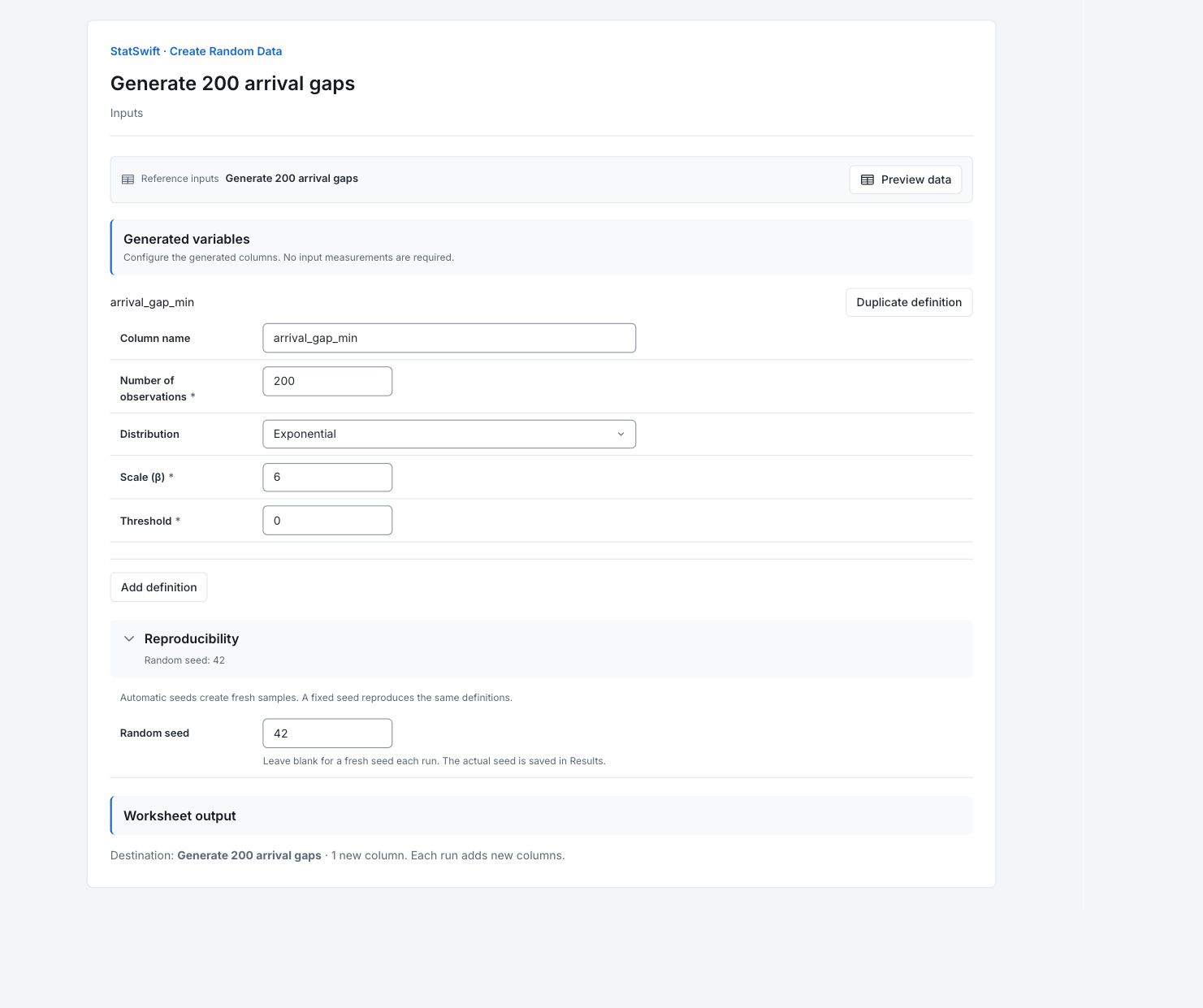
On Inputs, under Generated variables, enter arrival_gap_min in Column name and 200 in Number of observations. Choose Exponential in Distribution.
Enter 6 in Scale (β) and 0 in Threshold. Both parameters use minutes. Scale is the mean waiting time above the threshold, not an arrival rate.
3. Set the seed and destination
Open Reproducibility and enter 42 in Random seed.
Check Worksheet output: the destination should be your analysis worksheet, with one new column. Generate once to reproduce this example. Each successful run appends new columns.
4. Generate data
Choose Generate data, then open Results. Open Worksheet to see the new columns.
5. Interpret results
Check the generated output
There is one new column, arrival_gap_min, with 200 values. These are simulated observations for practice, not measured production data.
Read the model
With threshold 0 and scale 6 minutes, the model’s mean waiting time is 6 minutes. Short gaps are common, but longer waits remain possible. The sample average need not be exactly 6 minutes.
Read a generated row
The first generated gap is about 14.425 minutes. It exceeds the model mean, which is allowed. The value is a gap between arrivals, not the time at which an arrival occurred.
Use the sample deliberately
Use the generated columns to practise an analysis or explore the supplied model. Seed 42 repeats this sample with the same ordered definitions and calculation version. A blank seed requests a fresh sample. Running Generate data again appends columns; it does not replace the earlier output.
More details: read each result section
Complete result tables use six significant digits, as in Help.
Generation summary
The summary lists arrival_gap_min, its 200 valid values, the distribution and seed 42.
Calculated example output. Running a practice copy writes new columns to its independent worksheet.
| Definition | Output column | Distribution | Valid values | Seed |
|---|---|---|---|---|
| arrival_gap_min | arrival_gap_min | exponential | 200 | 42 |
Captured generator parameters
With threshold 0 and scale 6 minutes, the model’s mean waiting time is 6 minutes. Short gaps are common, but longer waits remain possible. The sample average need not be exactly 6 minutes.
| Definition | Parameter | Value |
|---|---|---|
| arrival_gap_min | scale | 6 |
| arrival_gap_min | threshold | 0 |
Generated values
All 200 generated rows are retained in generation order. The first generated gap is about 14.425 minutes. It exceeds the model mean, which is allowed. The value is a gap between arrivals, not the time at which an arrival occurred.
Captured values in original row order. Exports retain full precision.
| Row | arrival_gap_min |
|---|---|
| 1 | 14.4253 |
| 2 | 14.0171 |
| 3 | 14.3086 |
| 4 | 1.67877 |
| 5 | 0.518624 |
| 6 | 8.71596 |
| 7 | 8.45976 |
| 8 | 18.7458 |
| 9 | 0.475765 |
| 10 | 6.27937 |
| 11 | 0.422618 |
| 12 | 6.53414 |
| 13 | 10.388 |
| 14 | 2.32137 |
| 15 | 7.38951 |
| 16 | 0.92264 |
| 17 | 0.549464 |
| 18 | 1.89108 |
| 19 | 5.4072 |
| 20 | 2.47791 |
| 21 | 7.48432 |
| 22 | 1.34146 |
| 23 | 11.0278 |
| 24 | 7.36252 |
| 25 | 3.93478 |
| 26 | 2.50252 |
| 27 | 2.71992 |
| 28 | 0.462463 |
| 29 | 1.07779 |
| 30 | 4.11192 |
| 31 | 2.33208 |
| 32 | 7.58524 |
| 33 | 4.25094 |
| 34 | 1.42758 |
| 35 | 2.76653 |
| 36 | 3.84934 |
| 37 | 2.063 |
| 38 | 1.93147 |
| 39 | 5.27349 |
| 40 | 1.78168 |
| 41 | 8.00221 |
| 42 | 8.34518 |
| 43 | 6.5045 |
| 44 | 0.43817 |
| 45 | 6.80441 |
| 46 | 8.12603 |
| 47 | 6.73224 |
| 48 | 1.68029 |
| 49 | 1.92562 |
| 50 | 0.994415 |
| 51 | 2.12618 |
| 52 | 0.126839 |
| 53 | 1.00414 |
| 54 | 7.89034 |
| 55 | 23.9745 |
| 56 | 3.38123 |
| 57 | 1.70424 |
| 58 | 2.38654 |
| 59 | 2.16805 |
| 60 | 0.777802 |
| 61 | 6.49995 |
| 62 | 8.25509 |
| 63 | 9.04685 |
| 64 | 31.8593 |
| 65 | 12.64 |
| 66 | 9.8692 |
| 67 | 6.26095 |
| 68 | 3.55515 |
| 69 | 0.266721 |
| 70 | 5.73962 |
| 71 | 3.7283 |
| 72 | 9.04777 |
| 73 | 12.168 |
| 74 | 1.99241 |
| 75 | 0.298504 |
| 76 | 5.54893 |
| 77 | 15.3205 |
| 78 | 4.92643 |
| 79 | 12.7857 |
| 80 | 4.51809 |
| 81 | 7.88396 |
| 82 | 1.7327 |
| 83 | 0.806504 |
| 84 | 0.854885 |
| 85 | 0.706094 |
| 86 | 0.328039 |
| 87 | 10.2996 |
| 88 | 2.69169 |
| 89 | 2.31679 |
| 90 | 5.60976 |
| 91 | 1.1236 |
| 92 | 11.5098 |
| 93 | 7.75174 |
| 94 | 1.97545 |
| 95 | 1.20355 |
| 96 | 3.18612 |
| 97 | 1.82899 |
| 98 | 0.454432 |
| 99 | 3.02136 |
| 100 | 13.5113 |
| 101 | 6.0531 |
| 102 | 18.4945 |
| 103 | 12.2786 |
| 104 | 6.70735 |
| 105 | 11.1036 |
| 106 | 4.36158 |
| 107 | 6.4071 |
| 108 | 2.28131 |
| 109 | 1.31432 |
| 110 | 12.8695 |
| 111 | 0.841818 |
| 112 | 1.12739 |
| 113 | 1.86145 |
| 114 | 5.805 |
| 115 | 2.48303 |
| 116 | 4.1069 |
| 117 | 12.9587 |
| 118 | 9.25032 |
| 119 | 7.02748 |
| 120 | 1.0257 |
| 121 | 7.13653 |
| 122 | 2.72687 |
| 123 | 0.742582 |
| 124 | 2.39655 |
| 125 | 0.423345 |
| 126 | 5.49051 |
| 127 | 5.83006 |
| 128 | 1.7658 |
| 129 | 0.275049 |
| 130 | 16.3759 |
| 131 | 4.84679 |
| 132 | 8.92844 |
| 133 | 2.11677 |
| 134 | 10.0584 |
| 135 | 9.84763 |
| 136 | 0.558793 |
| 137 | 32.5895 |
| 138 | 4.04158 |
| 139 | 8.38655 |
| 140 | 1.46219 |
| 141 | 5.90293 |
| 142 | 1.71746 |
| 143 | 9.68367 |
| 144 | 2.77845 |
| 145 | 4.67458 |
| 146 | 3.16842 |
| 147 | 4.52106 |
| 148 | 2.83381 |
| 149 | 3.67796 |
| 150 | 0.172329 |
| 151 | 9.52505 |
| 152 | 15.0579 |
| 153 | 3.48576 |
| 154 | 20.4245 |
| 155 | 1.00852 |
| 156 | 16.7079 |
| 157 | 2.18613 |
| 158 | 4.01195 |
| 159 | 14.622 |
| 160 | 0.76155 |
| 161 | 1.14591 |
| 162 | 8.05517 |
| 163 | 5.89427 |
| 164 | 1.72781 |
| 165 | 2.66015 |
| 166 | 4.49911 |
| 167 | 11.3985 |
| 168 | 2.14992 |
| 169 | 4.59039 |
| 170 | 2.12511 |
| 171 | 1.82591 |
| 172 | 12.8013 |
| 173 | 3.3395 |
| 174 | 8.03655 |
| 175 | 1.81622 |
| 176 | 1.11621 |
| 177 | 6.85445 |
| 178 | 8.50472 |
| 179 | 5.70532 |
| 180 | 7.12411 |
| 181 | 6.11311 |
| 182 | 6.55174 |
| 183 | 13.5281 |
| 184 | 16.9408 |
| 185 | 3.97414 |
| 186 | 0.54447 |
| 187 | 8.42241 |
| 188 | 5.07716 |
| 189 | 14.6428 |
| 190 | 6.26684 |
| 191 | 0.841618 |
| 192 | 6.29524 |
| 193 | 3.43467 |
| 194 | 0.690817 |
| 195 | 1.6431 |
| 196 | 20.8562 |
| 197 | 2.41756 |
| 198 | 1.54855 |
| 199 | 2.66464 |
| 200 | 12.4041 |
6. Create a report
Keep Generation summary, Captured generator parameters and Generated values. Record the seed, the model and its units. Label the output as simulated practice data.
Choose Add to report from the completed run. Open Choose individual items and advanced options to select tables and charts, then choose Add to draft. Hidden items stay in the saved analysis.
Name the report and add the purpose of the study and your interpretation. Choose Save, review Preview, then use Export → Download HTML. The example below contains the full selected content, including results beyond one screen.