

Example: items per order by zone
90 orders: 30 from each of three packing zones; three numerical measurements per order.
Download the example data (CSV)This is the same example used in Help. Import the CSV to follow the steps, or use Open example in a practice copy in Help to prefill the inputs.
1. Create the workspace
In the sidebar, open Basic Statistics and choose Display Descriptive Statistics. Create an analysis, name it, select New blank worksheet, then choose Create analysis.
2. Import the example data
Download the CSV above and import it into the worksheet. Choose Comma as the delimiter, Dot as the decimal separator and First row contains column names.
3. Assign the input columns
On Inputs, open Variable and select item_count. Enter item_count in Display name (optional). Check Summarize by groups, then assign packing_zone to Grouping variable (optional).
4. Set the summaries and plots
Enter 0.05 in Trimming proportion per tail. This requests 5% trimming from each end. Open Plot options and check Include histogram, Include boxplot and Include individual value plot.
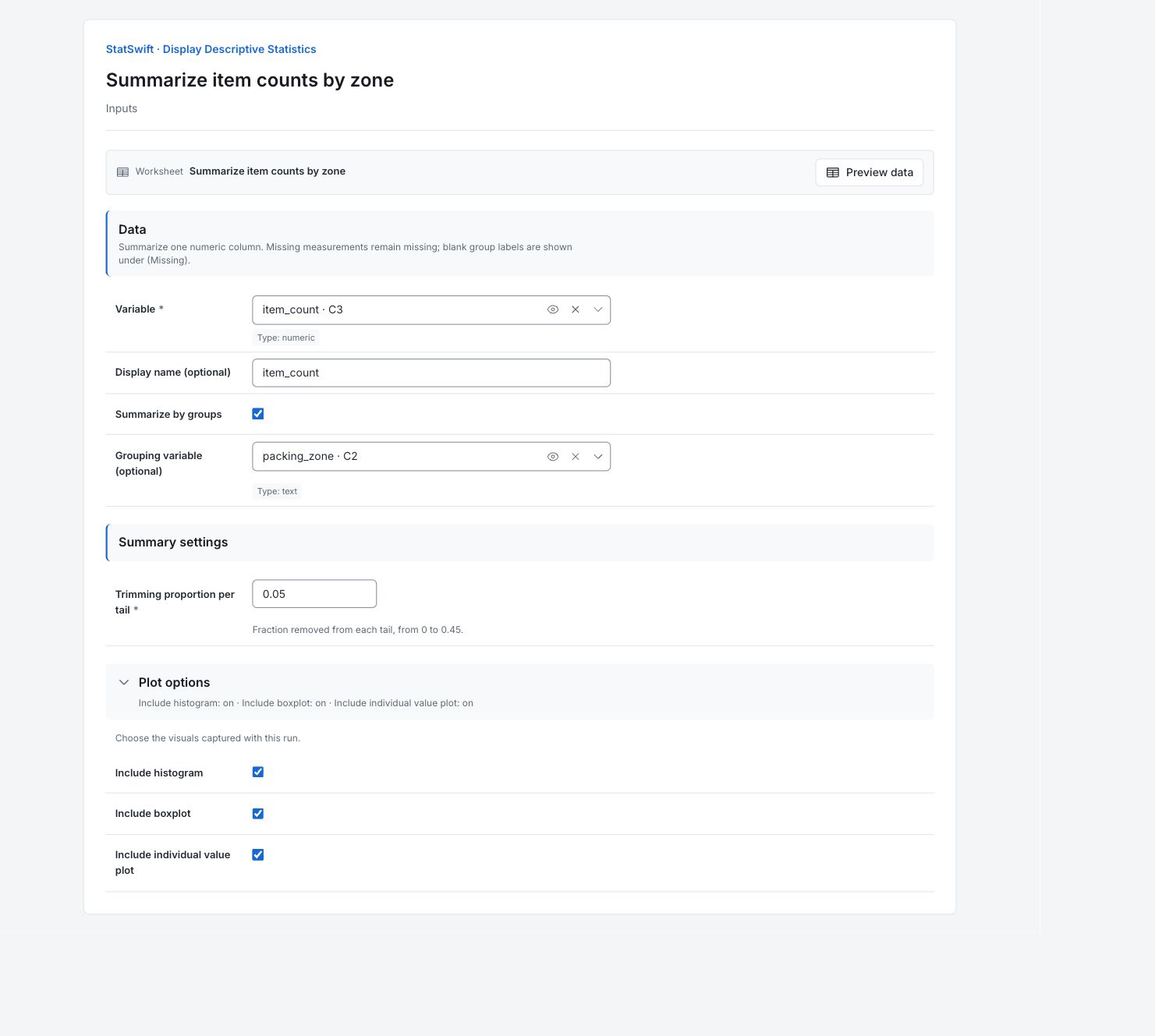
5. Run analysis
Choose Run analysis, then open Results.
6. Interpret results
Check what was summarized
The data contain 90 orders: 30 from each of three packing zones, with no missing measurements. The group table separates the zones. All three charts combine the 90 orders.
Read the center
The overall mean is 6.34 items and median 6 items. The mean is the average; the median splits the ordered values in half. Individual counts are whole numbers, but their average of 6.34 items can be fractional.
Read the spread
The standard deviation is 3.48 items. It describes variation between orders, not uncertainty in the average. Read the range and quartiles alongside it before comparing zones.
Compare the zones
The zone means are Mixed_orders 5.17 items, Accessories 7.17 items and Small_parts 6.70 items. Each has 30 orders. The pooled average combines these different order mixes.
Read the histogram
Each bar counts orders in a value interval. Read the horizontal axis in the measurement unit and look at the overall shape and spread. These are observed counts; they do not give the probability for a future order.

Items per order (items) across all 90 orders; the three packing zones are pooled. View full-size chart (opens in a new tab) Read the boxplot
The box contains the middle half of the measurements, with a line at the median. The observed values range from 1–12 items; no values cross the 1.5 × IQR fences. The fences describe this sample, not customer acceptance limits.

Items per order (items) across all 90 orders; the three packing zones are pooled. View full-size chart (opens in a new tab) See the individual values
Each point represents one order. Values are sorted along the measurement axis; vertical spacing separates them. This plot shows neither collection order nor separate zone distributions.

Items per order (items) across all 90 orders; the three packing zones are pooled. View full-size chart (opens in a new tab) Choose the next comparison
Compare item count with packing time and parcel mass to understand order mix before comparing zone performance.
More details: read each result section
Complete result tables use six significant digits, as in Help.
item_count — Descriptive statistics
Counts and center: Non-missing, Missing and Total describe available values. Mean is the average; Median is the middle ordered value. Trimmed mean excludes 5% from each tail using the app’s convention.
Spread and uncertainty: SD describes spread in the measurement unit; Variance is SD squared. Min, Max and Range describe extremes. Q1 and Q3 bound the middle half; IQR is their difference. Standard error describes uncertainty in the mean, not spread between orders. See Additional descriptive measures for the remaining definitions.
| Statistic | Value |
|---|---|
| Non-missing count | 90 |
| Missing count | 0 |
| Total count | 90 |
| Mean | 6.34444 |
| Median | 6 |
| Trimmed mean | 6.32927 |
| Standard deviation | 3.47757 |
| Variance | 12.0935 |
| Standard error | 0.366568 |
| Coefficient of variation (%) | 54.8129 |
| Minimum | 1 |
| Q1 | 3 |
| Q3 | 9 |
| Interquartile range | 6 |
| Maximum | 12 |
| Range | 11 |
| Sum | 571 |
| Sum of squares | 4699 |
| Skewness | 0.0248981 |
| Kurtosis | -1.17071 |
| Mean square successive difference | 12.5562 |
item_count — Group summaries
Group is the packing-zone label; n and Missing count usable and missing measurements. Mean and SD describe each zone separately. Percent and Cumulative % describe shares of the included observations in the displayed group order; they are not performance rates.
Percents are relative to non-missing measurements; group order follows first appearance.
| Group | n | Missing | Mean | SD | Percent | Cumulative % |
|---|---|---|---|---|---|---|
| Mixed_orders | 30 | 0 | 5.16667 | 3.31229 | 33.3333 | 33.3333 |
| Accessories | 30 | 0 | 7.16667 | 3.37418 | 33.3333 | 66.6667 |
| Small_parts | 30 | 0 | 6.7 | 3.53456 | 33.3333 | 100 |
Descriptive calculation methods
These rows name the quartile, skewness and excess-kurtosis conventions. Keep them with the report when comparing summaries from different software. Quartiles use interpolation at (n + 1)p with endpoint clamping.
| Statistic | Value |
|---|---|
| Quartiles | Interpolation at (n + 1)p with endpoint clamping |
| Skewness | Adjusted Fisher–Pearson |
| Kurtosis | Bias-corrected excess kurtosis |
item_count — Modes
Each row lists a value tied for the greatest recorded frequency. Rounding can create repeated values; a mode is not a target setting.
| Mode |
|---|
| 1 |
| 8 |
item_count — Histogram summary
Bins is the interval count; Bin width is in the measurement unit. Scale is frequency, so bar heights count orders. Keep these settings with the chart because changing bins changes its appearance.
| Statistic | Value |
|---|---|
| Bins | 14 |
| Bin width | 1 |
| Scale | frequency |
item_count — Boxplot summary
Q1, Median and Q3 describe the ordered values. IQR is Q3 minus Q1. Fences are Q1 minus 1.5 × IQR and Q3 plus 1.5 × IQR; whiskers end at the most extreme observations inside them. Fence values can fall outside the physical data range. They are not acceptance limits.
| Statistic | Value |
|---|---|
| Lower whisker | 1 |
| Q1 | 3 |
| Median | 6 |
| Q3 | 9 |
| Upper whisker | 12 |
| IQR | 6 |
| Lower fence | -6 |
| Upper fence | 18 |
Additional descriptive measures
Coefficient of variation is SD as a percentage of the mean. Sum and Sum of squares are arithmetic totals. Skewness describes asymmetry and excess Kurtosis describes tail shape. Mean square successive difference uses neighboring worksheet values, so it depends on row order. The app’s quartile and trimming conventions remain in Descriptive calculation methods.
7. Create a report
Keep the overall Descriptive statistics, Group summaries, Modes, calculation methods, histogram settings, boxplot summary and all three charts. Include the units and explain that the charts pool the zones.
Choose Add to report from the completed run. Open Choose individual items and advanced options to select tables and charts, then choose Add to draft. Hidden items stay in the saved analysis.
Name the report and add the purpose of the study and your interpretation. Choose Save, review Preview, then use Export → Download HTML. The example below contains the full selected content, including results beyond one screen.