

Example: drying batches
A drying study records wet batch mass, inlet temperature, drying time and electricity use for 48 batches. Transform each measurement using this sample’s values.
Download the drying-batch measurements (CSV)This is the same example used in Help. The CSV contains the measurements to import. The four numeric columns use kg, °C, minutes and kWh; batch_id keeps track of the batch.
1. Create the analysis
In the sidebar, open Data utilities, choose Standardize & Normalize, and name the analysis. Select New blank worksheet and Create analysis.
2. Import the data
On Worksheet, choose Import. Select the downloaded file or paste its contents. Set the delimiter to Comma, use Decimal dot, and check First row contains column names. Preview the import, then choose Import into worksheet.
3. Select the input columns
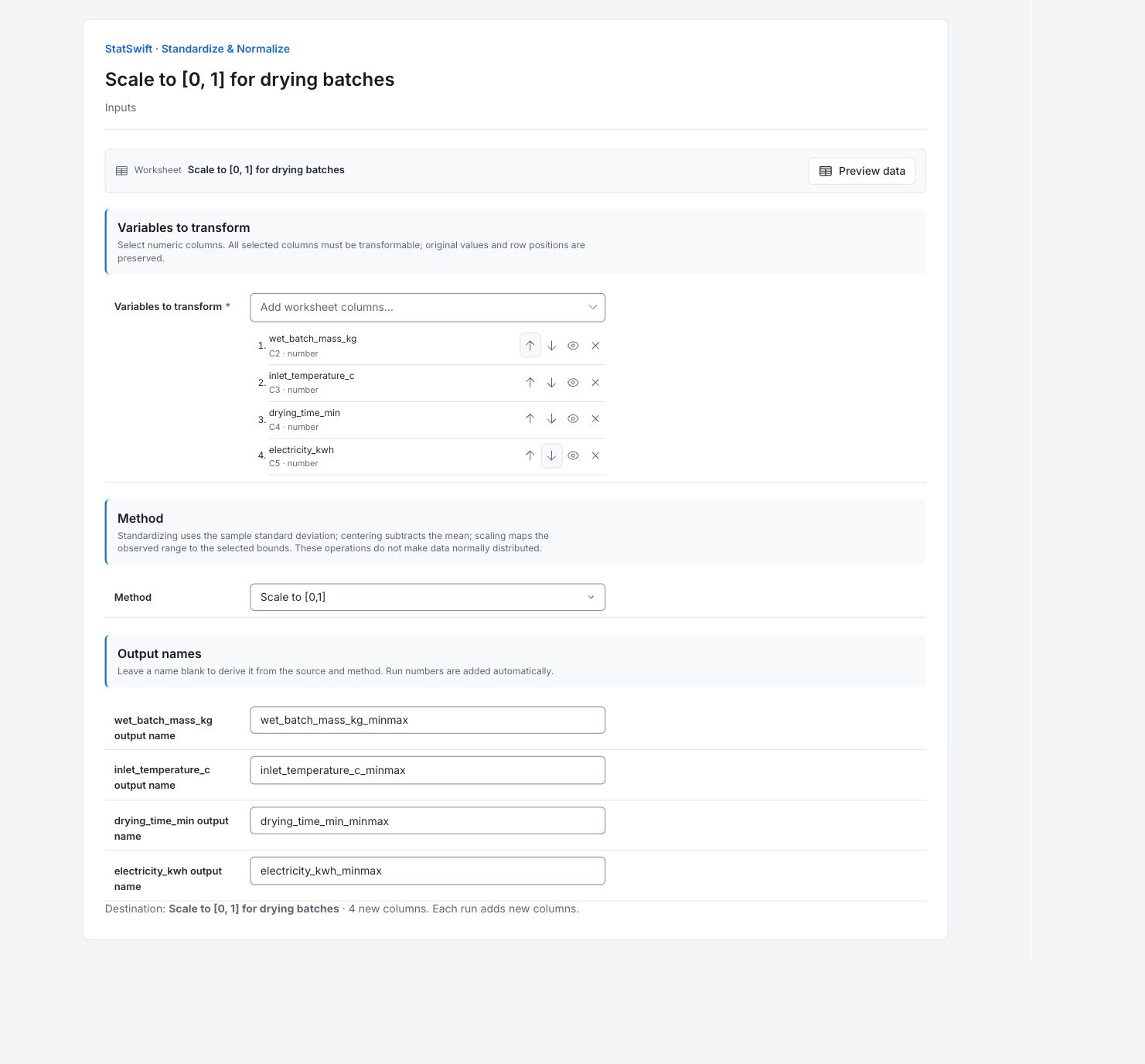
On Inputs, open the column picker for Variables to transform. Select wet_batch_mass_kg, inlet_temperature_c, drying_time_min and electricity_kwh, in that order. Use the up and down arrows to correct their order if needed.
Leave batch_id unselected; it identifies a batch, rather than a measurement.
4. Set the method and output names
In Method, choose Scale to [0,1]. Under Output names, enter the matching name for each source column.
| Source column | Output name |
|---|---|
wet_batch_mass_kg | wet_batch_mass_kg_minmax |
inlet_temperature_c | inlet_temperature_c_minmax |
drying_time_min | drying_time_min_minmax |
electricity_kwh | electricity_kwh_minmax |
Check the destination worksheet and the note showing 4 new columns. The original columns are retained.
5. Transform
Choose Transform, then open Results. Open Worksheet to see the four new columns beside the originals. Each successful transform appends new columns; repeating it does not replace the earlier output.
6. Interpret results
Read the source summary
The summary describes the four original columns, each with 48 values and no missing readings. For mass, the average is 45.4906 kg, sample standard deviation is 7.00915 kg, and observed range is 32.57–66.24 kg.
Understand the transformation
Map each column’s observed minimum to 0 and maximum to 1. Values between them show position within that sample’s range. This is not a percentile or an acceptance scale.
Read the first transformed batch
For each column, scaled value = (value − source minimum) / (source maximum − source minimum). The first 50 kg mass becomes (50 − 32.57) / (66.24 − 32.57) ≈ 0.5177. It is just over halfway across the observed mass range, not at the 51.77th percentile. Each other column uses its own minimum and maximum.
Choose the next analysis
The four measurements now share a 0–1 scale based on their own sample ranges. A value of 1 marks the observed maximum, not a customer limit; future measurements can lie beyond the original range. Select the new columns explicitly for your next analysis. Scaling does not make the data normally distributed, remove dependence or establish acceptable process performance.
Keep the saved operation in context
All 48 rows remain in batch order and the originals are preserved. Results records the transformation as it ran. Later worksheet edits or Undo can change the worksheet without changing that saved result.
More details: read each result section
Complete result tables use six significant digits, as in Help.
Transformation summary
Source and Output column identify each original and new column. Valid values counts usable source readings; Missing counts missing readings. Source mean, Source SD, Source minimum and Source maximum describe the original column in its measurement unit. Map each column’s observed minimum to 0 and maximum to 1. Values between them show position within that sample’s range. This is not a percentile or an acceptance scale.
Calculated example output. Running a practice copy writes new columns to its independent worksheet.
| Source | Output column | Method | Valid values | Missing | Source mean | Source SD | Source minimum | Source maximum |
|---|---|---|---|---|---|---|---|---|
| wet_batch_mass_kg | wet_batch_mass_kg_minmax | Scale to [0,1] | 48 | 0 | 45.4906 | 7.00915 | 32.57 | 66.24 |
| inlet_temperature_c | inlet_temperature_c_minmax | Scale to [0,1] | 48 | 0 | 64.5083 | 3.24567 | 57.1 | 70.4 |
| drying_time_min | drying_time_min_minmax | Scale to [0,1] | 48 | 0 | 30.594 | 4.51978 | 23.02 | 41.72 |
| electricity_kwh | electricity_kwh_minmax | Scale to [0,1] | 48 | 0 | 17.1239 | 1.74961 | 14.265 | 22.814 |
Transformed values
Row 1 is the first imported batch. Each column contains its transformed measurements, with all 48 rows kept in collection order. For the first batch, mass is 50 kg. Its position between 32.57 and 66.24 kg gives about 0.5177 after scaling. It is just over halfway across the observed mass range.
Captured values in original row order. Exports retain full precision.
| Row | wet_batch_mass_kg_minmax | inlet_temperature_c_minmax | drying_time_min_minmax | electricity_kwh_minmax |
|---|---|---|---|---|
| 1 | 0.517672 | 0.654135 | 0.567914 | 0.401217 |
| 2 | 0.0703891 | 0.233083 | 0.145989 | 0.112645 |
| 3 | 0.52777 | 0.586466 | 0.790909 | 0.419464 |
| 4 | 0.517375 | 0.0977444 | 0.425134 | 0.469763 |
| 5 | 0.283932 | 0.796992 | 0.579679 | 0.215815 |
| 6 | 0.850609 | 0.654135 | 1 | 0.854837 |
| 7 | 0.293139 | 0.518797 | 0.309091 | 0.166569 |
| 8 | 0.16335 | 0 | 0.071123 | 0 |
| 9 | 1 | 0.766917 | 0.934225 | 1 |
| 10 | 0.275022 | 0.300752 | 0.483422 | 0.192186 |
| 11 | 0.108108 | 0.43609 | 0.313369 | 0.0445666 |
| 12 | 0.366498 | 0.406015 | 0.314973 | 0.281787 |
| 13 | 0.38907 | 0.150376 | 0.0561497 | 0.128904 |
| 14 | 0.356697 | 0.488722 | 0.16631 | 0.274535 |
| 15 | 0.277398 | 0.789474 | 0.294652 | 0.339455 |
| 16 | 0.462726 | 0.428571 | 0.355615 | 0.484618 |
| 17 | 0.294921 | 0.473684 | 0.411765 | 0.255702 |
| 18 | 0.418473 | 0.969925 | 0.574332 | 0.43549 |
| 19 | 0.24651 | 0.759398 | 0.413369 | 0.231957 |
| 20 | 0.813484 | 0.699248 | 0.697326 | 0.657387 |
| 21 | 0.36234 | 0.864662 | 0.134225 | 0.279565 |
| 22 | 0.045144 | 0.360902 | 0 | 0.0355597 |
| 23 | 0.390852 | 0.721805 | 0.654545 | 0.34004 |
| 24 | 0.182655 | 0.842105 | 0.0887701 | 0.239443 |
| 25 | 0.2079 | 0.917293 | 0.360963 | 0.208095 |
| 26 | 0.220671 | 0.481203 | 0.419786 | 0.157679 |
| 27 | 0.150876 | 0.481203 | 0.30107 | 0.169961 |
| 28 | 0.532225 | 0.796992 | 0.535294 | 0.496315 |
| 29 | 0.275913 | 0.353383 | 0.0855615 | 0.128553 |
| 30 | 0.362043 | 0.172932 | 0.248663 | 0.318166 |
| 31 | 0.47817 | 0.639098 | 0.321925 | 0.378524 |
| 32 | 0.262251 | 0.315789 | 0.259358 | 0.280735 |
| 33 | 0.297594 | 0.43609 | 0.264171 | 0.359106 |
| 34 | 0.283932 | 0.759398 | 0.234759 | 0.316645 |
| 35 | 0.389367 | 0.293233 | 0.572727 | 0.369868 |
| 36 | 0.265518 | 0.323308 | 0.0561497 | 0.198503 |
| 37 | 0.463914 | 0.451128 | 0.573262 | 0.374664 |
| 38 | 0.441936 | 0.969925 | 0.432086 | 0.403322 |
| 39 | 0.494802 | 0.766917 | 0.316043 | 0.359457 |
| 40 | 0.555094 | 0.511278 | 0.67861 | 0.369517 |
| 41 | 0.355806 | 0.466165 | 0.425134 | 0.279799 |
| 42 | 0.709831 | 0.616541 | 0.49893 | 0.586969 |
| 43 | 0.75052 | 1 | 0.601604 | 0.72371 |
| 44 | 0 | 0.338346 | 0.158824 | 0.0433969 |
| 45 | 0.303831 | 0.639098 | 0.529412 | 0.315592 |
| 46 | 0.245619 | 0.857143 | 0.204813 | 0.20248 |
| 47 | 0.577666 | 0.496241 | 0.661497 | 0.559364 |
| 48 | 0.580042 | 0.654135 | 0.917647 | 0.589894 |
7. Create a report
Keep Transformation summary and all rows of Transformed values. Record the selected method, source columns and output names. The summary describes the original measurements; the values table contains the transformed output.
Choose Add to report from the completed run. Open Choose individual items and advanced options to select tables and charts, then choose Add to draft. Hidden items stay in the saved analysis.
Name the report and add the purpose of the study and your interpretation. Choose Save, review Preview, then use Export → Download HTML. The example below contains the full selected content, including results beyond one screen.