

Example: pouch-seal strength
The team plans to vary jaw temperature, dwell time and jaw pressure. Run a complete replicate on each of two days, with three additional center runs per day. Seal strength will be measured in N per 15 mm of seal width.
Download the factor catalog (CSV)This is the same example used in Help. The CSV lists factor definitions to enter manually on Inputs; importing it does not configure the design. Use Open example in a practice copy in Help to prefill the example settings.
1. Create the workspace
In the sidebar, open Design of Experiments and create an analysis. Name it, select New blank worksheet, then choose Create analysis. The factor catalog is a reference; no measurement data needs to be imported for this task.
2. Choose the design
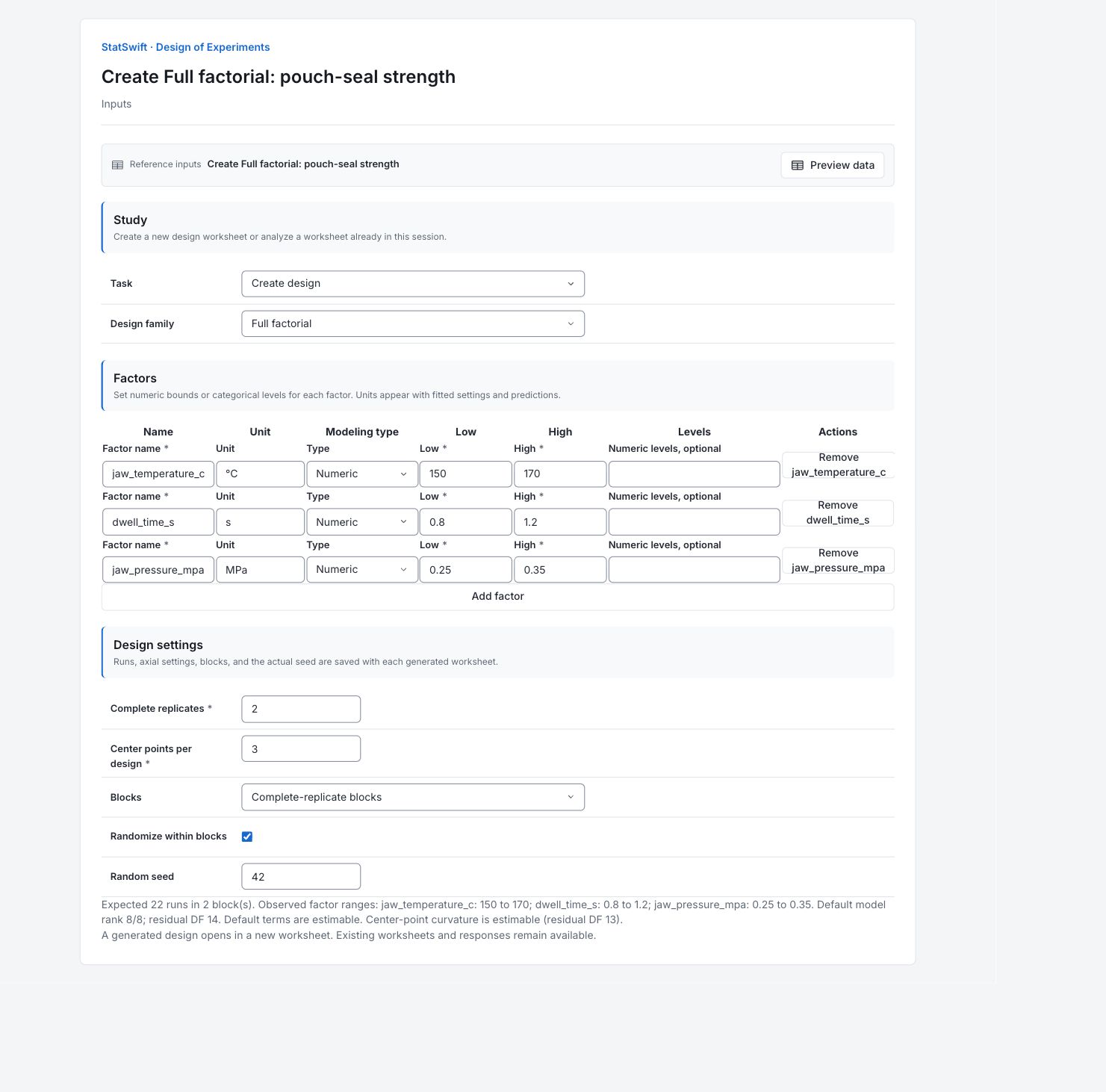
On Inputs, choose Create design for Task and Full factorial for Design family.
3. Enter the factors
Under Factors, use Add factor or remove a row until there are 3 factors. Keep them in the order below. Set Type to Numeric for every factor.
Enter the Factor name, Unit, Low and High values below.
| Factor | Factor name | Unit | Low | High |
|---|---|---|---|---|
| A | jaw_temperature_c | °C | 150 | 170 |
| B | dwell_time_s | s | 0.8 | 1.2 |
| C | jaw_pressure_mpa | MPa | 0.25 | 0.35 |
Leave Numeric levels, optional blank to use the two bounds as levels.
4. Set the run plan
Enter 2 in Complete replicates and 3 in Center points per design. For Blocks, choose Complete-replicate blocks. Check Randomize within blocks and enter 42 in Random seed.
The preview should show Expected 22 runs in 2 block(s). In this blocked design, each block contains eight factorial runs and three center runs.
5. Generate design
Before choosing Generate design, confirm that all low, high and center settings are feasible, the response can be measured consistently, and each preparation can be run independently.
Choose Generate design. A new worksheet opens with the randomized run plan and a blank Response 1 column. Open Results to inspect the design summary and complete run sheet. Keep this generated study separate from the recorded analysis example.
6. Interpret results
Check the run plan
Design summary shows 22 runs in two blocks. Each block contains all eight low/high combinations plus three center runs. The blocks can represent the two planned days. This is a plan; no seal strength has been measured yet.
Read the first run
Execution order 1 is standard-order run 4 in block 1. Its settings are 150 °C, 1.2 second dwell and 0.35 MPa pressure. Standard order identifies a design combination; execution order tells you when to perform it.
Understand the center runs
Center settings are 160 °C, 1 second and 0.3 MPa. Repeat the entire preparation and run independently at these settings. Reading the same pouch several times is not an independent replicate of the experiment.
Conduct and record the study
Follow the randomized execution order within each day/block and independently prepare each run. Enter newly measured strength in Response 1 against its actual run ID. Do not copy responses from another experiment by row position; its randomized order may differ.
More details: read each result section
Complete result tables use six significant digits, as in Help.
Design summary
Family identifies the design. Runs is the total, 22; Base runs is the generator’s base count, 8. Replicates and Blocks record the chosen structure. Actual seed is 42; keep Generator version with it when reproducing the plan. Alpha applies to axial distance in a central composite design. Resolution describes aliasing in a fractional factorial; a dash means the statistic is not applicable.
| Statistic | Value |
|---|---|
| Family | Full factorial |
| Runs | 22 |
| Base runs | 8 |
| Replicates | 2 |
| Blocks | 2 |
| Alpha | — |
| Resolution | — |
| Actual seed | 42 |
| Generator version | doe-v2.1 |
- Unavailable settings are shown as —; the saved design rows remain authoritative.
Factor settings
Each row gives the Factor name, modeling Type, Unit and entered Low and High bounds. All factors here are numeric. A dash under Levels means no additional explicit level list was entered. Midpoints are factor settings for center runs, not measured responses.
| Factor | Type | Unit | Low | High | Levels |
|---|---|---|---|---|---|
| jaw_temperature_c | numeric | °C | 150 | 170 | — |
| dwell_time_s | numeric | s | 0.8 | 1.2 | — |
| jaw_pressure_mpa | numeric | MPa | 0.25 | 0.35 | — |
Run sheet
All generated runs are shown in execution order. Row ID identifies a run; Standard order identifies its design position; Execution order gives its planned sequence. Block groups runs and Replicate identifies repeated designs. Point type distinguishes factorial, star (axial), edge or center points, as applicable. The remaining columns are actual factor settings in their stated units. The generated worksheet’s Response 1 starts blank; no response values appear in this plan.
| Row ID | Standard order | Execution order | Block | Point type | Replicate | jaw_temperature_c | dwell_time_s | jaw_pressure_mpa |
|---|---|---|---|---|---|---|---|---|
| doe-4 | 4 | 1 | 1 | factorial | 1 | 150 | 1.2 | 0.35 |
| doe-8 | 8 | 2 | 1 | factorial | 1 | 170 | 1.2 | 0.35 |
| doe-5 | 5 | 3 | 1 | factorial | 1 | 170 | 0.8 | 0.25 |
| doe-9 | 9 | 4 | 1 | center | 1 | 160 | 1 | 0.3 |
| doe-7 | 7 | 5 | 1 | factorial | 1 | 170 | 1.2 | 0.25 |
| doe-10 | 10 | 6 | 1 | center | 1 | 160 | 1 | 0.3 |
| doe-11 | 11 | 7 | 1 | center | 1 | 160 | 1 | 0.3 |
| doe-2 | 2 | 8 | 1 | factorial | 1 | 150 | 0.8 | 0.35 |
| doe-6 | 6 | 9 | 1 | factorial | 1 | 170 | 0.8 | 0.35 |
| doe-1 | 1 | 10 | 1 | factorial | 1 | 150 | 0.8 | 0.25 |
| doe-3 | 3 | 11 | 1 | factorial | 1 | 150 | 1.2 | 0.25 |
| doe-19 | 19 | 12 | 2 | factorial | 2 | 170 | 1.2 | 0.35 |
| doe-13 | 13 | 13 | 2 | factorial | 2 | 150 | 0.8 | 0.35 |
| doe-14 | 14 | 14 | 2 | factorial | 2 | 150 | 1.2 | 0.25 |
| doe-15 | 15 | 15 | 2 | factorial | 2 | 150 | 1.2 | 0.35 |
| doe-20 | 20 | 16 | 2 | center | 2 | 160 | 1 | 0.3 |
| doe-12 | 12 | 17 | 2 | factorial | 2 | 150 | 0.8 | 0.25 |
| doe-22 | 22 | 18 | 2 | center | 2 | 160 | 1 | 0.3 |
| doe-18 | 18 | 19 | 2 | factorial | 2 | 170 | 1.2 | 0.25 |
| doe-17 | 17 | 20 | 2 | factorial | 2 | 170 | 0.8 | 0.35 |
| doe-16 | 16 | 21 | 2 | factorial | 2 | 170 | 0.8 | 0.25 |
| doe-21 | 21 | 22 | 2 | center | 2 | 160 | 1 | 0.3 |
7. Create a report
Keep Design summary, Factor settings and the complete Run sheet. Record the actual seed, generator version, units and planned execution order. This report documents a design; add measured responses and their analysis separately after conducting the study.
Choose Add to report from the completed run. Open Choose individual items and advanced options to select tables and charts, then choose Add to draft. Hidden items stay in the saved analysis.
Name the report and add the purpose of the study and your interpretation. Choose Save, review Preview, then use Export → Download HTML. The example below contains the full selected content, including results beyond one screen.